
Set up your robotDual arm systemUse the Robot admin page
Use the Robot admin page
The Robot admin page is served by the robot itself on its network. With the robot's device code it installs software updates and manages SSH keys without your MAKIINA account or the internet.
At the end of this page you can open the Robot admin page, the page the dual arm system serves on its own network, and install updates and SSH keys there with the robot's device code. It is the way for when your MAKIINA account or the internet is not at hand. With your account, the Robot Console on your PC does the same and needs no device code (Add your SSH keys, Update the robot software). You never need the Robot admin page to get started or to drive the robot.
What the Robot admin page is
The head Pi runs a small web server, and the Robot admin page is what it serves. Any browser on a computer on the same network as the robot opens it. It needs no SDK, no internet connection and no MAKIINA account: only the robot's address and its device code.
Each robot has its own address, made from its name:
http://<robot name>.local:8726These pages use the example robot acme-robot-02, whose address is http://acme-robot-02.local:8726. Use your own robot's name, the one at the top right of its card, not the example. A new name for the robot in your account does not change the address.
Find the device code
The device code is 20 letters and digits in five groups of four. It is not on the robot's card. Owners and admins of the robot's organization find it after the claim, with their account, on a computer on the robot's network:
In the Robot Console on your PC. Open the robot from Fleet, choose Cloud in the page menu next to its name and press Show the device code.
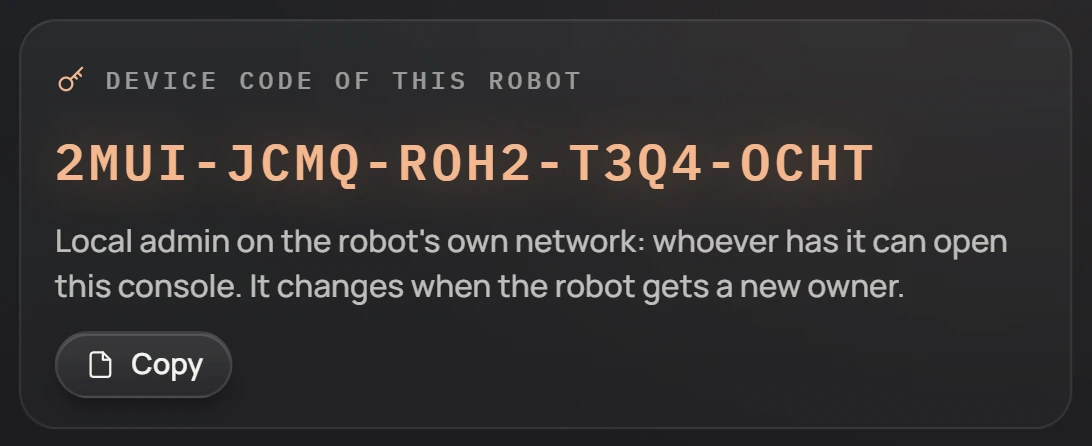
In the account console. Open Robots, MANAGE on the robot and OPEN ROBOT CONSOLE, press MAKE THE LINK, then OPEN THE ROBOT'S CONSOLE. The Robot admin page opens with your account for 10 minutes and shows Device code of this robot. Keep it on this browser keeps the code in that browser, as described below.

Either way the code is shown only on the robot's own network; it never passes through MAKIINA Cloud. Keep a note of it with the robot if you plan to work without the account. The device code changes when the robot changes owner.
Open the page
Use a computer on the robot's network: one connected to the same router or switch as the robot, not to a guest network. From anywhere else, the address does not answer.
Open the robot's address in a browser. The page Unlock this robot opens. It says first that you drive the robot from the Robot Console on your PC, then asks for the device code. Under its heading you see the address you reached.
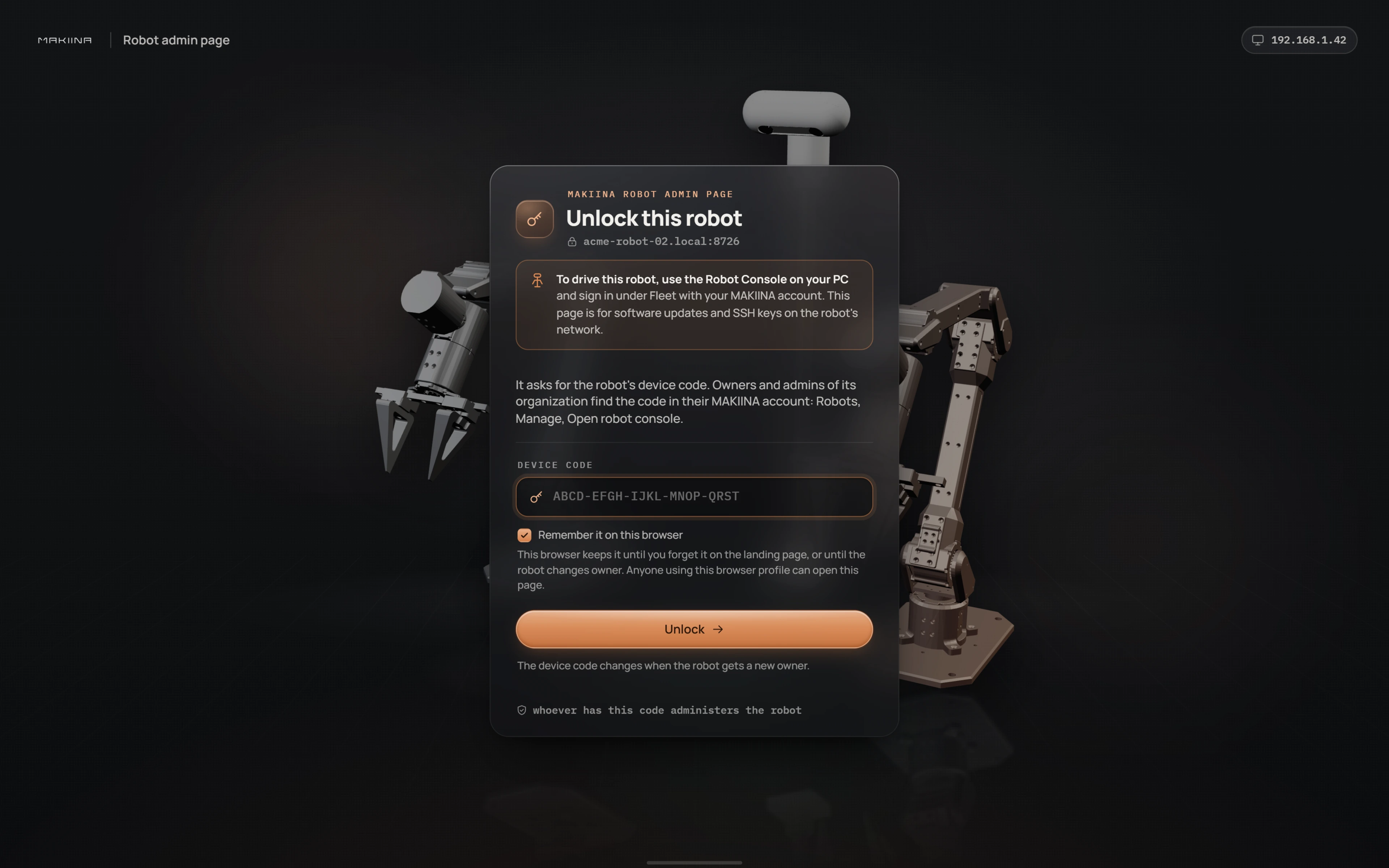
Type the device code and press Unlock. Dashes and lower case are fine. Before you press it, decide whether this browser keeps the code (below).
The landing page opens, with the robot's name and four tiles:
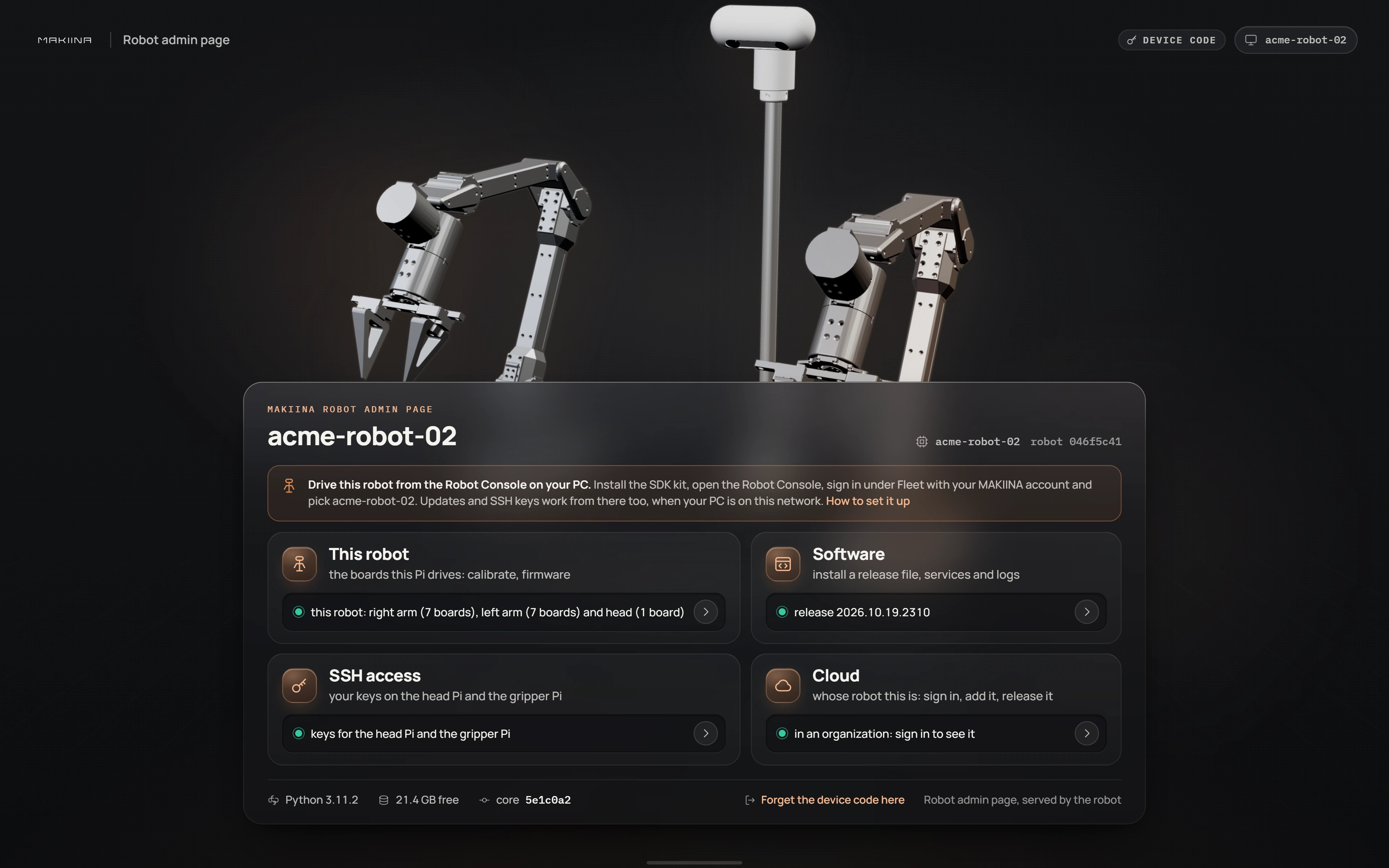
| Tile | What you do there |
|---|---|
| This robot | Calibration and firmware tools for the boards in the robot. A new robot does not need them. |
| Software | Install a release file, as in Update the robot software. |
| SSH access | Your keys for both computers, as in Add your SSH keys. |
| Cloud | Whose robot this is, and releasing it to a next owner: Sell, give away or return the robot. |
On the Software, SSH access and Cloud pages, the menu next to the robot's name also lists Cameras, the stereo camera calibration (Calibrate the head cameras). The robot leaves the factory calibrated, so you need it only after a camera or its mount has moved.
Remember the device code on this browser
The box Remember it on this browser, under the device code, decides how long this browser keeps the code. It is ticked at first.
- Ticked: this browser profile keeps the code and opens the Robot admin page without asking, until you click Forget the device code here at the bottom of the landing page, or until the robot changes owner. A change of owner makes a new device code, and the next visit asks for it.
- Unticked: the code is forgotten when you close the tab, and the next visit asks for it again.
Leave it ticked on your own PC. On a shared PC, untick it, or click Forget the device code here when you are done.
If the page does not open
- The browser cannot find
acme-robot-02.local, or the name of your robot. Some networks and PCs do not resolve.localnames. Look the robot up in your router's list of devices (it is listed under the robot's name) and openhttp://<that address>:8726instead. - The page does not load at all. Your computer is not on the robot's network, the robot is still starting (give it a minute after switching on), or the head Pi's network cable is loose.
- The device code is refused. The page says to check the code on the card in the box, but the card has no device code: compare the code letter by letter with the one you found above. After ten wrong codes in a minute the robot ignores your PC for five minutes. A robot that changed owner has a new code: find it again the same way.
The Robot admin page does not open has more.