
Set up your robotDual arm systemAdd SSH keys
Add your SSH keys
Put your public key on both computers of the dual arm system from the Robot Console on your PC, and sign in over SSH from the robot's network.
At the end of this page you sign in to the dual arm system's head Pi and gripper Pi over SSH with your own key. Add your keys after the robot is in your account: adding a robot to an account resets its keys to the MAKIINA factory key, and so does every later change of owner.
SSH works on the robot's network only
SSH to the head Pi and the gripper Pi works only from a computer on the robot's network: on site, or from elsewhere over your own VPN into that network. Driving is different: your MAKIINA account lets you drive the robot from anywhere.
The same holds for MAKIINA support. They can use SSH on your robot only on site or over your own VPN, and only while the MAKIINA key is on the robot.
A new robot carries one key, the MAKIINA factory key. The switch Remove the MAKIINA keys when I add mine is on by default, so the first key you add removes the MAKIINA factory key from both computers. From then on MAKIINA support has no SSH access until you put their key back (below).
Add your key from the Robot Console
You need an owner or admin account of the robot's organization, and your PC on the robot's network.
Make a key pair on your PC if you have none. In a terminal (PowerShell on Windows):
ssh-keygen -t ed25519Press Enter to keep the suggested place; a passphrase is up to you. It writes your private key to
.ssh/id_ed25519in your home folder, where it stays, and the public line to.ssh/id_ed25519.pub.Open the robot's SSH access page. Start the Robot Console on your PC, sign in under Fleet with your account if you have not yet, open the robot and choose SSH access in the menu next to its name. When the PC reaches the robot, the top bar shows LAN with the robot's address and robot console reached or the robot's host name; if it says reaching the robot's console, same network needed, your PC is not on the robot's network.
The page lists the keys that may sign in. A new robot has one key, the factory key MAKIINA support uses, in the MAKIINA keys row.
Decide about MAKIINA support. The switch Remove the MAKIINA keys when I add mine is on by default, so your first key takes the MAKIINA key off both computers. Turn it off now if MAKIINA support should keep SSH access next to yours. You can change your mind later (below).
Paste the public line (the whole content of
id_ed25519.pub, one line) into Add your public key, give it a name you will recognise, and press Add key. This prints the line in a terminal, PowerShell included:cat ~/.ssh/id_ed25519.pubThe key appears in the list. With the switch on, the MAKIINA key is gone: the MAKIINA keys row now says removed. Here two keys were added:
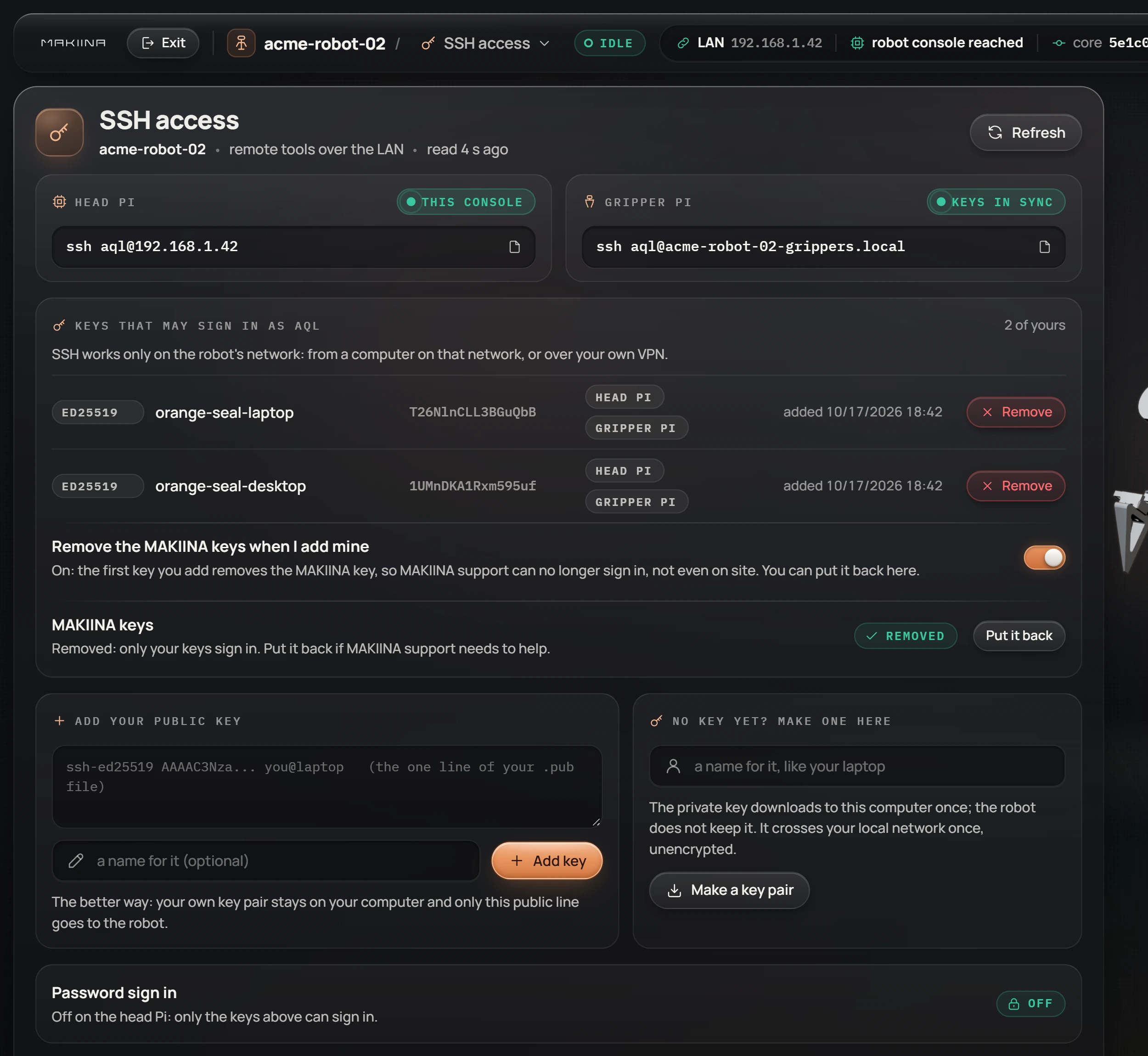
Sign in from a PC on the robot's network with the lines the page shows under Head Pi and Gripper Pi; the button at the end of a line copies it. By name, the two Pis answer to the name on the robot's card, here
acme-robot-02, with-grippersfor the gripper Pi. A new name for the robot in your account does not change them.ssh aql@acme-robot-02.local # head Pi: arms, head, cameras, cloud connection ssh aql@acme-robot-02-grippers.local # gripper Pi: the gripper camerasThe first time, SSH asks whether you trust the computer's host key: type
yes. Both open a shell as the useraql;exitcloses it. If your PC cannot resolve.localnames, use the address from your router. A PC that is not on the robot's network gets no answer.
Without your account or the internet, the SSH access tile of the Robot admin page does the same, with the robot's device code.
Keep MAKIINA support in, or let it back in
Put it back in the MAKIINA keys row restores the factory key on both computers, for example while MAKIINA support helps you, and Remove them takes it off again. The switch Remove the MAKIINA keys when I add mine applies to the next key you add.
With the key back, MAKIINA support still signs in only on site or over a VPN into your network that you give them: the key alone does not let anyone in from the internet.
Manage the keys
- Remove on a key's row takes it off both computers at once.
- The list is the same on both computers. The head Pi sends it to the gripper Pi. If the gripper Pi shows a warning instead of keys in sync, press Apply to the gripper Pi again once it is on.
- A key added by hand in
~/.ssh/authorized_keysshows as by hand and can be removed here too. - The robot takes ed25519 keys, hardware security keys (
sk-ssh-ed25519) and RSA keys of 3072 bits or more, up to 32 keys. SSH with a password is off on both computers and stays off. - Without a key pair and a terminal, Make a key pair makes one on the robot and downloads the private key to your PC once; the robot keeps no copy. The private key crosses your local network unencrypted on the way, so your own key pair is the better choice.
Work on the robot safely
The user aql may use sudo: an SSH key is full access to that computer. Keep these three rules, or an update can break the robot:
- Never run
apt update,apt upgrade,apt full-upgradeorrpi-update, and never update the bootloader or change its settings. The robot's system is pinned to the versions its cameras and network timing were measured with. Software updates leave the system, the kernel and the bootloader version alone too; they only keep the bootloader's memory settingSDRAM_BANKLOW=3in place. A newer system comes on a new SD card from MAKIINA. - Install Python packages into
~/repos/.venvonly, never into the system Python. - Keep your own data in
~/repos/core/robot-calibrationsor outside~/repos. A software update installs the new version next to the old one and carries overrobot-calibrationsandlogs; any other file you changed under~/repos/corestays behind with the old version.
Next: Update the robot software.