
Set up your robotSingle arm kitSet up the arm kit
Set up a single arm kit
Download the SDK kit from your MAKIINA account, connect a single arm to your PC through its USB CAN adapter, see it in the Robot Console, make the first move, and keep the kit and the drive firmware up to date.
At the end of this page your arm is plugged into your PC and the Robot Console on your PC shows it Ready, one click away from the first move. A single arm kit needs no network and no claim card: everything runs on your PC. Your MAKIINA account is only for downloading the SDK kit.
What is in the box
- The arm: six joints and the parallel gripper, each with its own drive. It leaves the factory calibrated and with its firmware loaded.
- A USB CAN adapter. It connects the arm's CAN bus to a USB port of your PC and already runs the candleLight firmware the SDK needs. On Windows it needs a driver, which you give it once in step 4.
- The cables your order lists.
- A printed sheet on the open source software inside and how to get its source code.
What you need
- A 24 V DC power supply. It is not in the box. Pick one of 250 W or more for the arm; the 500 W that the product page names also works. A smaller supply works too, but it limits how much torque the arm can give. Pick a supply with a switch you can reach from the bench.
- A PC with Windows or Linux on x86_64, or Linux on ARM64 (which versions).
- A MAKIINA account, to download the SDK kit. You make one in step 1 below if you have none.
- A clear bench, with a hand near the supply's switch.
Connect the arm and see it
- Download the SDK kit from your MAKIINA account. Sign in at
cloud.makiina.com/account, or press CREATE AN ACCOUNT there if you have none. A single arm kit has no claim code, so skip the page Add a robot. if it opens. Open SDK at the top, press GET DOWNLOAD LINK on the row of your PC, then DOWNLOAD NOW. The link works for 24 hours, in a browser or withcurl, so you can also copy it to the PC that drives the arm. - Install the SDK kit on the PC: unzip it and run
setup, as in Install the SDK. Whensetuphas finished, the kit folder has a.venvfolder. On Windows the SDK also needs the Microsoft Visual C++ Redistributable (x64), which most PCs have; without it no session starts (vc_redist.x64.exe). - Plug the USB CAN adapter into the arm's CAN cable and into a USB port of the PC.
- Give the adapter its driver. On Windows, do the four steps of Give the adapter its driver on Windows once on this PC. On Linux, add the udev rule of Install the SDK instead.
- Connect the 24 V supply to the arm and switch it on. The drives start and hold the arm where it is.
- Start the Robot Console: double-click
RobotConsole.batin the kit folder (Windows), or run./robot_console.shthere (Linux). Your browser opens http://127.0.0.1:8726, and the On this PC card names what it found, for example 1 adapter, right arm (7 boards). - Open On this PC. The arm has a row with its adapter, its seven boards (J1 to J6 and the gripper) and Ready.
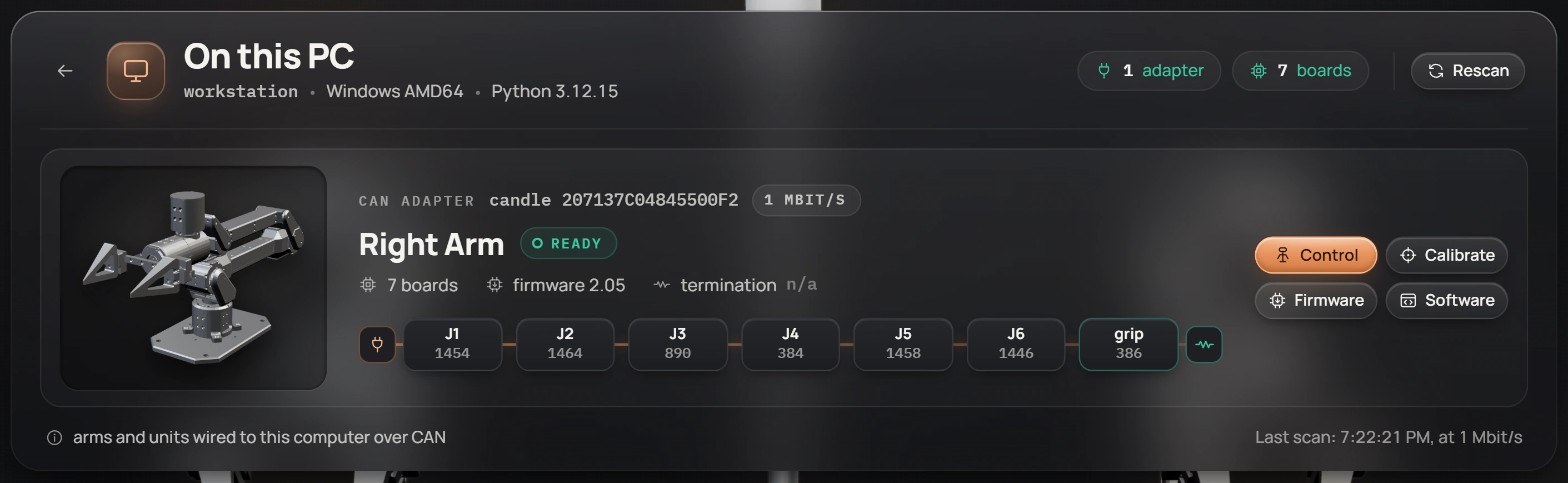
If the row is missing or says something else, go to When the arm does not show up below.
Make the first move
From here the arm works like every MAKIINA arm on a PC, and these pages take you through it step by step:
- First moveSet safe limits, arm the session and jog a joint in the console, then do the same in ten lines of Python.
- Drive from the cockpitEvery panel of the Control page and the API call behind it.
- Connect from Python
Robot.connect_local()and what it does on your PC. - Run two arms on one PCA second arm on its own adapter.
Keep the kit up to date
The SDK kit. A new kit is a new version on the SDK page of your account (the download page lists the newest version too). Get its link as in step 1, unzip it into a new folder, run setup there, and copy your own scripts and the robot-calibrations folder across from the old kit folder. That folder holds your arm's settings files, which the SDK wrote the first time it connected, with any change you made to them yourself. Changes on the console's Tuning page are not in it: a drive keeps one until the next session sets that key again or, for a key a session does not set, until the drive is switched off (What a new session sets). Then delete the old folder.
The drive firmware. Each kit carries the current drive firmware. On the arm's row in On this PC, the firmware version turns amber when the drives run an older one. Open Firmware on the arm's row and flash one board at a time; the boards keep their calibration. Update drive firmware has the details.
When the arm does not show up
The On this PC card says no USB CAN adapter plugged in. On Windows, an adapter that Device Manager lists under Other devices has no driver on this PC yet: give it one as in Give the adapter its driver on Windows. On Linux your user needs the udev rule from Install the SDK. Otherwise plug the adapter in again and click Rescan.
Another program holds the adapter. A notebook, a script that did not disconnect, the Actuator Console or a second Robot Console has it open. Close it: an adapter has one owner at a time.
No boards answered. The arm is off or its CAN cable is loose. Check the 24 V supply and both ends of the cable, then click Rescan.
A drive is missing. The row shows fewer than seven boards, and the chain of boards shows which joint is absent. A board that stays silent has lost power or the bus at that joint: check the cable into that joint and the one after it, switch the arm off and on, and click Rescan.
Two drives on the same id. Each drive takes its CAN id from its chip, and on rare occasions two drives on one bus draw the same id. The Firmware page then says 2 boards answer on this id, and Resolve moves one of them to a free id (both need firmware 2.05). Two boards on one id explains it.
The row says boards without a unit. The drives do not know which arm they belong to, which happens after a board was replaced. See Re-calibrate a unit.
More symptoms, from sessions that do not start to joints that do not move, are in Troubleshooting.