
Set up your robotDual arm systemUpdate the software
Update the robot software
Download a signed release file and drop it on the robot's Software page in the Robot Console on your PC; the dual arm system updates both computers, checks itself and goes back on its own when a check fails.
At the end of this page the dual arm system runs the newest MAKIINA software on both of its computers. Updates never arrive by themselves: you download a release file and give it to the robot from the Robot Console on your PC, with the PC on the robot's network. The robot needs no internet connection for it.
An update replaces the MAKIINA software. It never changes the operating system, the kernel or the bootloader version of the robot's computers; a newer system comes on a new SD card from MAKIINA. The one bootloader setting an update looks after is SDRAM_BANKLOW=3, the memory setting the robot's system needs: the update writes it when it is missing, and it takes effect at the robot's next start.
Install an update
Download the newest release file from the list Robot software releases on the download page, on any PC. Release files are public: you need no account and no sign in. Take the release marked Latest; a file marked Test file is not for customer robots, and they refuse it. The file is called
makiina-robot-<version>.mkpkg. Keep it: it is all you need to install this version again. When the list says No releases are published yet, there is no update to install. The short steps above that list, and the kit'sdocs/updates.md, look for a device code on the robot's card. The card has none: follow the steps on this page.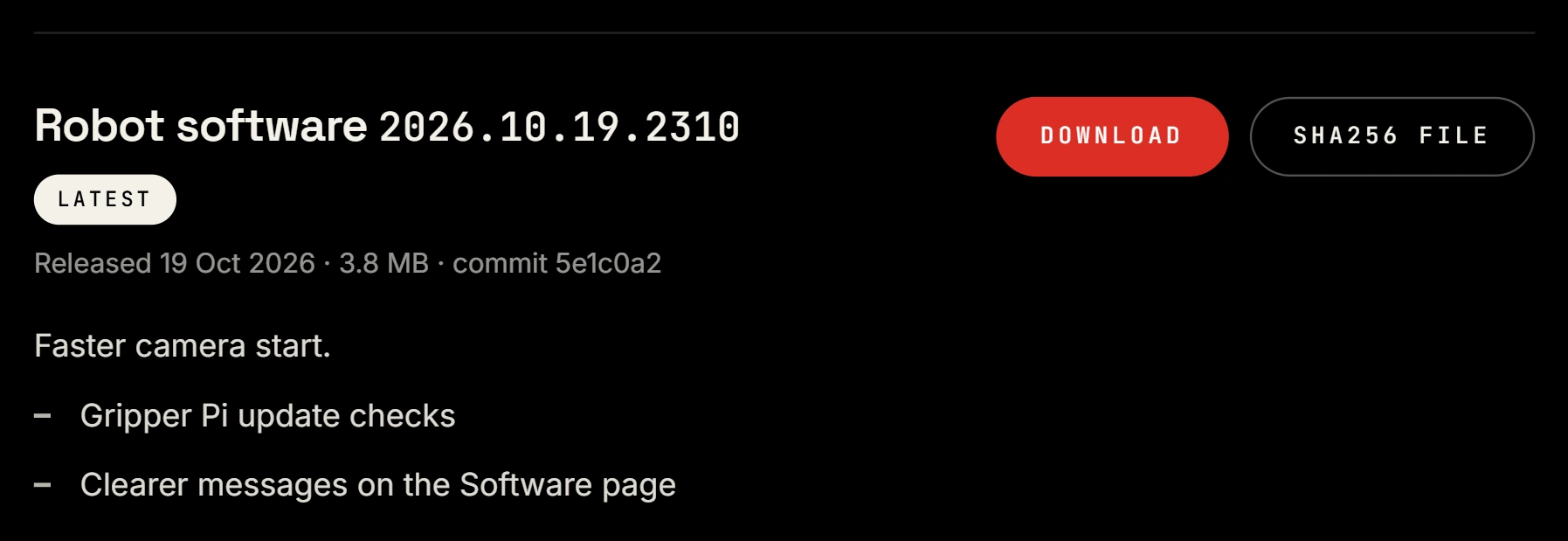
An example release on the download page. Open the robot's Software page. On a PC on the robot's network, start the Robot Console, sign in under Fleet as an owner or admin, open the robot and choose Software in the menu next to its name. When the PC reaches the robot, the top bar shows LAN with the robot's address and the robot's host name; while it says reaching the robot's console, same network needed, it does not. The Release update panel shows the version the robot runs (Installed) and the one before it (Previous).
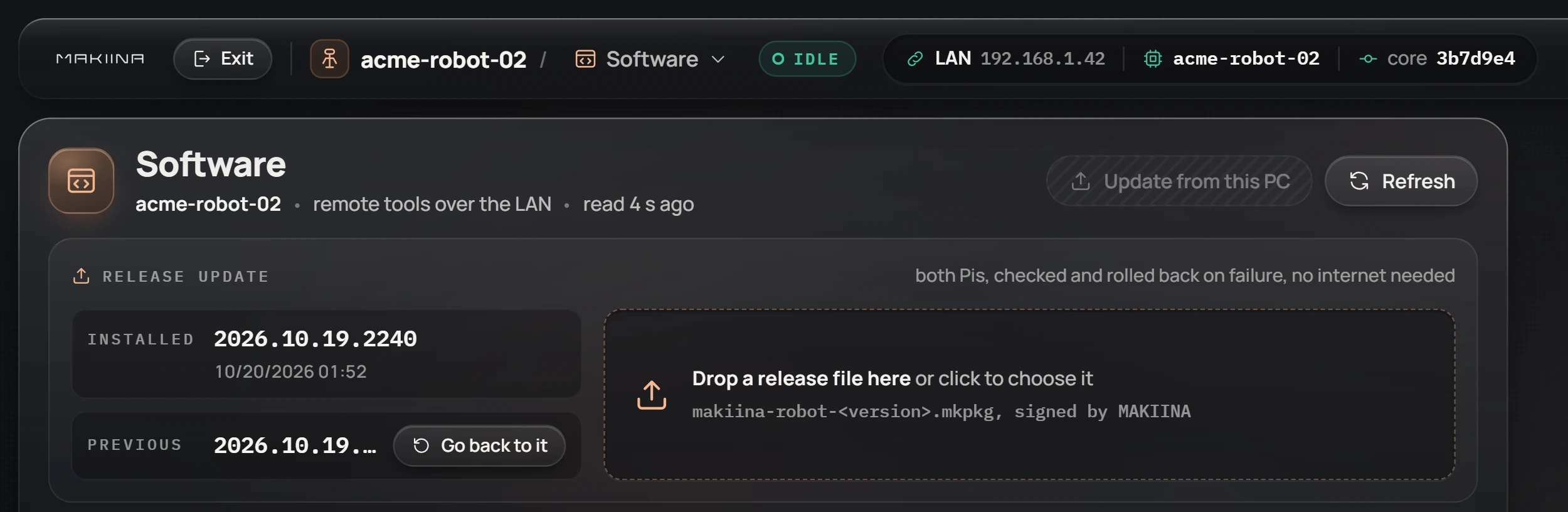
Update from this PC, at the top of the page, is a tool for MAKIINA's developers. You do not need it: updates come as release files.
Drop the file onto Drop a release file here, or click there and choose it. The browser asks you to confirm: press OK. The robot takes no sessions until the update is done.
Watch the steps. The robot checks MAKIINA's signature and the version, installs the new version on the head Pi, then on the gripper Pi, restarts its services and checks itself. A typical update takes 3 to 10 minutes.

Read the result. A green line says Release ... installed with the date, and Installed shows the new version.
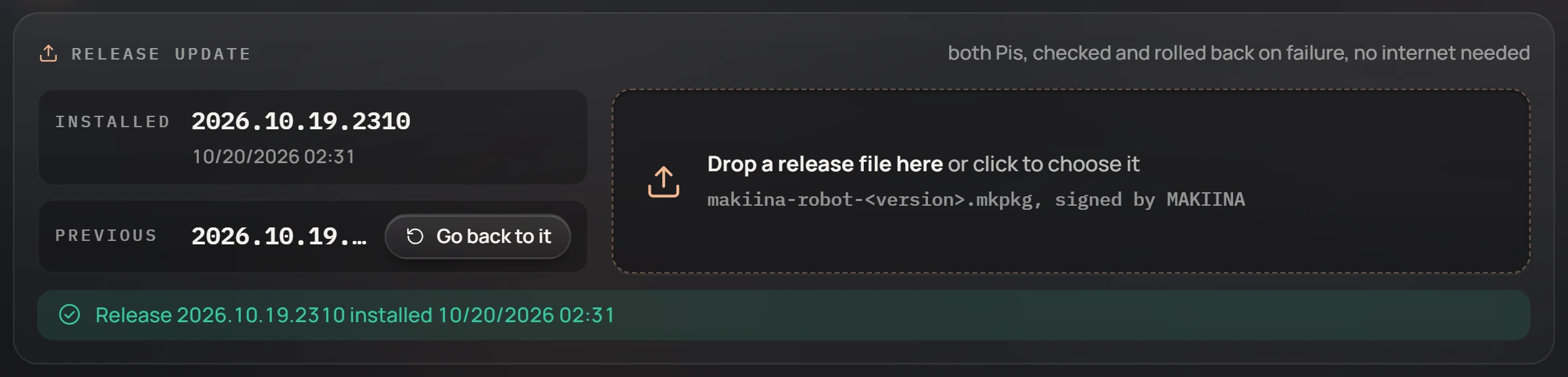
The PC must be on the robot's network, because the file goes straight from your PC to the robot. Without your account or the internet, the Software tile of the Robot admin page does the same, with the robot's device code. The device code is not on the robot's card: Find the device code says where it is.
What the robot checks
Before it changes anything, the robot refuses a file that MAKIINA did not sign, a file that was changed after signing, even by one byte, a file for another kind of computer, and the version it already runs. Nothing on the robot changes when a file is refused, and the page says why.
The new version is installed next to the running one. Your robot's own data, robot-calibrations and logs, is copied into it. Only then does the robot switch over, restart its services and check them: every service running, its Robot admin page answering, its cloud agent starting in the new version, and the gripper Pi reporting its camera service up on the new version.
When a check fails, the robot goes back
If any check fails, both computers switch back to the version they ran before and restart it. The page says what failed and that the robot went back. You lose nothing, and the robot works as before.
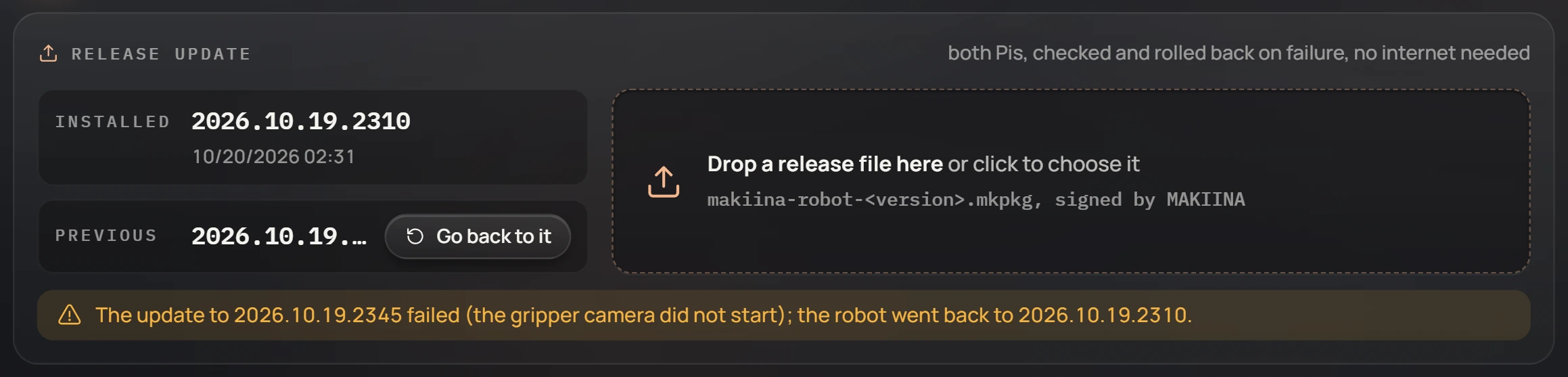
The same happens when the power goes off in the middle of an update: the robot notices at its next start and goes back. If a release keeps going back, write to MAKIINA support at sales@makiina.com with the message from the page.
To return to the version before the last update yourself, press Go back to it next to Previous and confirm. Both computers switch back.
When the file is refused
| The page says | What to do |
|---|---|
| the release signature does not match: the file was changed after MAKIINA signed it, or it is damaged | Download the file again from the download page. |
| this file is signed with a MAKIINA development key | It is a test file, not a release. Take the release marked Latest. |
| this robot already runs ... | Nothing to do: the robot has this version. |
| ... is older than ..., which this robot runs; confirm to install an older version | The page has no confirm button yet. To return to the version before the last update, use Go back to it; for any older version, see Update from a shell. |
| a teleop session is running on this robot: end it first | End the session (Exit in the cockpit, or End session in the fleet list), then drop the file again. |
| the gripper Pi cannot take this update | The gripper Pi is off or not on the network. Check its power and cable, wait a minute, and try again. To update the head Pi alone, see Update from a shell. |
| not enough free space: ... MB free, an update needs about ... MB | Write to MAKIINA support at sales@makiina.com with the message. |
Update from a shell on the head Pi
With your SSH key on the robot (Add your SSH keys), the same update runs from a shell. You need it only for the two cases the page cannot do yet: an older version, or the head Pi alone while the gripper Pi is away.
Copy the file to the head Pi. Here
acme-robot-02.localstands for your head Pi: the name on your robot's card followed by.local, or the address its SSH access page shows.scp makiina-robot-<version>.mkpkg aql@acme-robot-02.local:Sign in (
ssh aql@acme-robot-02.local) and start the update. Add--allow-olderfor an older version, or--head-onlyto leave out a gripper Pi that does not answer:~/repos/.venv/bin/python -m makiina.console.software apply --head-only makiina-robot-<version>.mkpkgIt checks the file, starts the update and returns. Follow it on the Software page as usual. The checks and the automatic way back are the same.
After a --head-only update the gripper Pi keeps its older version. When it is back on the network, run the same command with --reinstall in place of --head-only to bring both computers to the same version.
Check a download
Optional, because the robot checks the signature by itself: the download page shows each file's SHA256. To compare it before you go to the robot:
certutil -hashfile makiina-robot-<version>.mkpkg SHA256      # Windows
sha256sum makiina-robot-<version>.mkpkg                      # Linux