
The consoleFind and connect
Find and connect to a robot
Use the Robot Console to see the hardware on your PC and the robots in your account, and open a session with one of them.
The Robot Console is a web page that runs on your own PC. It lists two kinds of hardware: arms and units wired to this computer, and the robots in your MAKIINA account wherever they are. Pick one and the console opens a session with it. This page shows how to find your hardware and get to the cockpit; Drive from the cockpit covers what you do there.
Start the console
RobotConsole.bat                # Windows, from the kit or a checkout
./robot_console.sh              # Linux and macOS
makiina-console                 # any shell with the SDK's environment active
Your browser opens http://127.0.0.1:8726. The console only listens on your own machine; nobody else on the network can open it. To run a second console, give it another port with --port 8728.
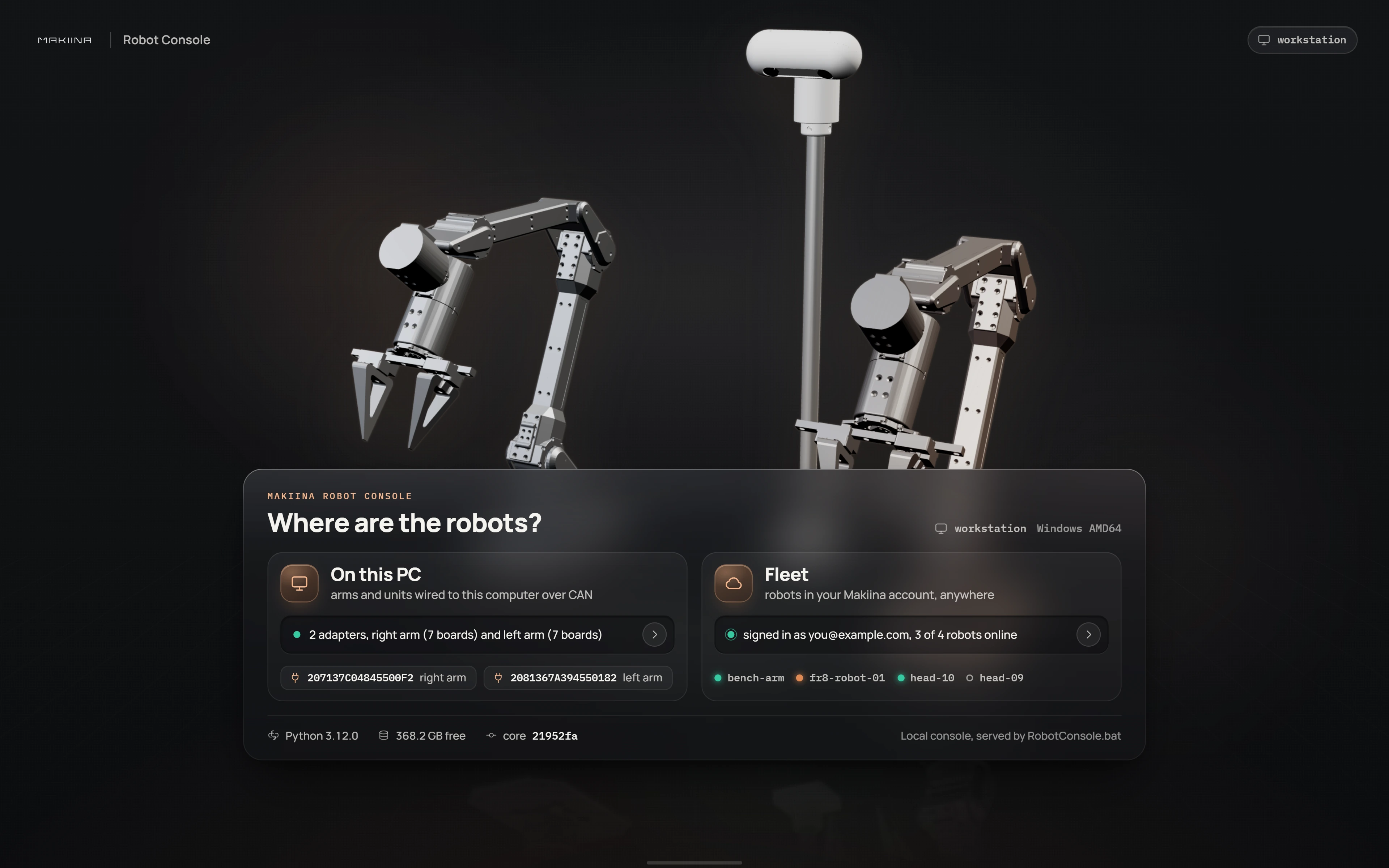
The landing page has two cards. On this PC sums up what answered on your USB CAN adapters. Fleet tells you whether you are signed in and how many of your robots are online. Along the bottom you see your Python version, free disk space and the version of the SDK the console is running.
Connect to an arm on your PC
Open On this PC. The console looks at every USB CAN adapter and asks each board what it is. Every arm or unit it finds gets a row:
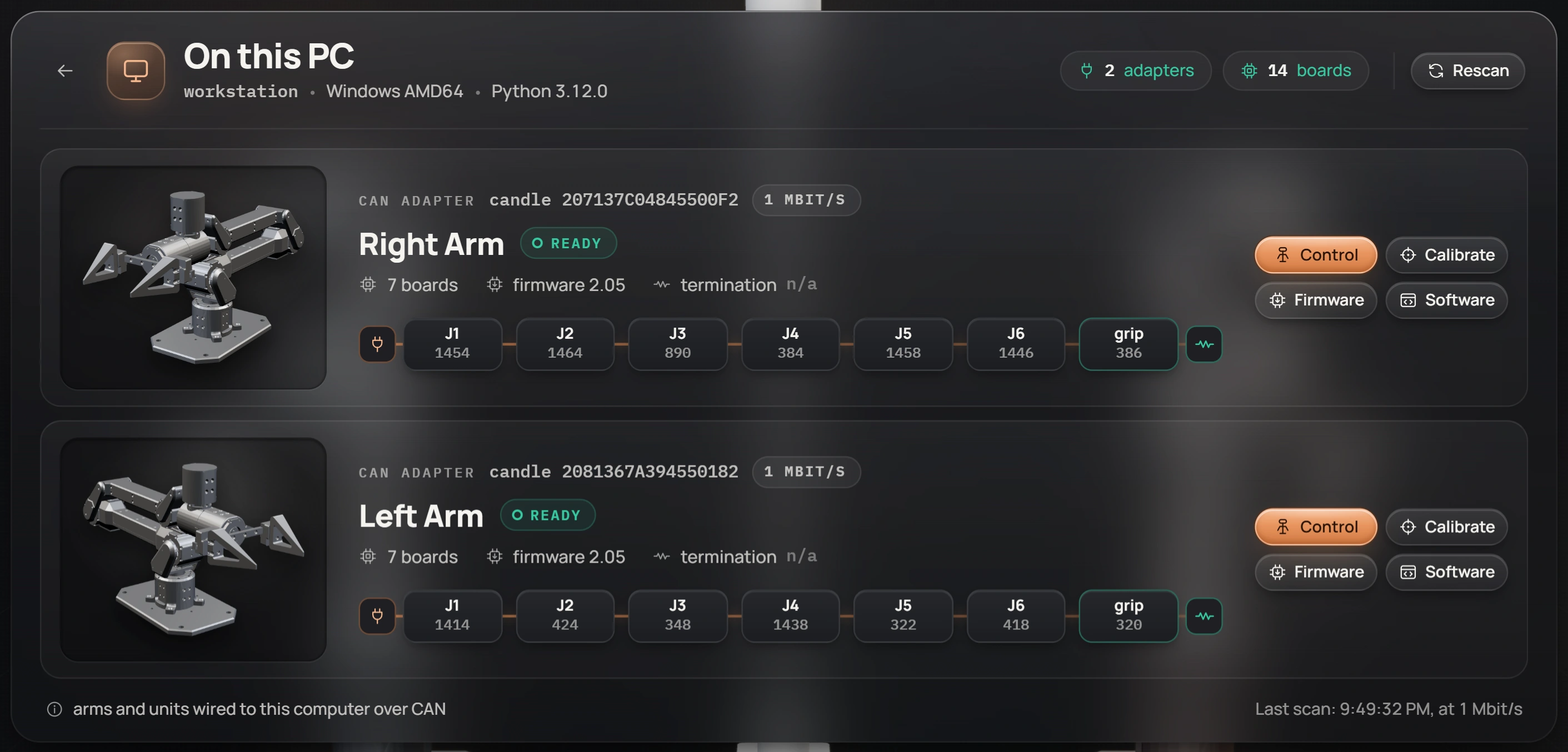
- The adapter's serial number and the bus speed, 1 Mbit/s.
- The unit (right arm, left arm, head) and Ready when every board answered and says it is calibrated.
- The chain of boards from J1 to the gripper, each with its CAN id, in the order they sit on the bus.
- The firmware version the boards run.
Click Control to open a session with that unit. The console starts a robot server on your PC, on that adapter, and waits for the first joint state. It takes a few seconds; the cockpit opens when the arm is live.
Click Rescan after plugging in another adapter or powering an arm on.
Click Control on the arm's row.
from makiina.robot import Robot

robot = Robot.connect_local()
A row that says boards without a unit holds boards that do not know which arm they belong to yet, and no boards answered means the adapter is there but the bus is silent: the arm is off or its cable is loose. Troubleshooting goes through both.
Sign in to your fleet
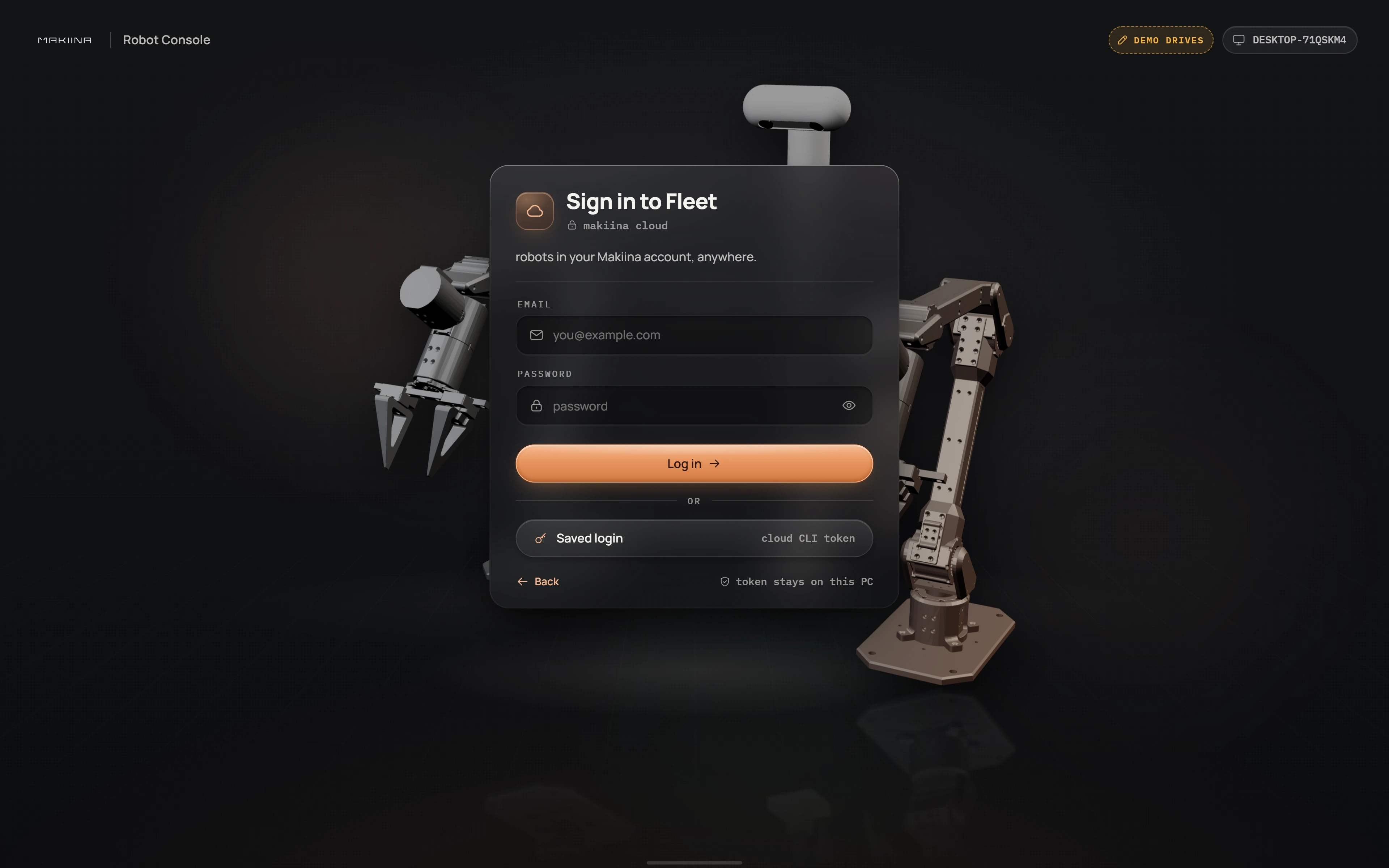
Open Fleet and sign in with your MAKIINA Cloud email and password. If you logged in once with the command line tool, Saved login signs you in with that token instead. The token stays on your PC.
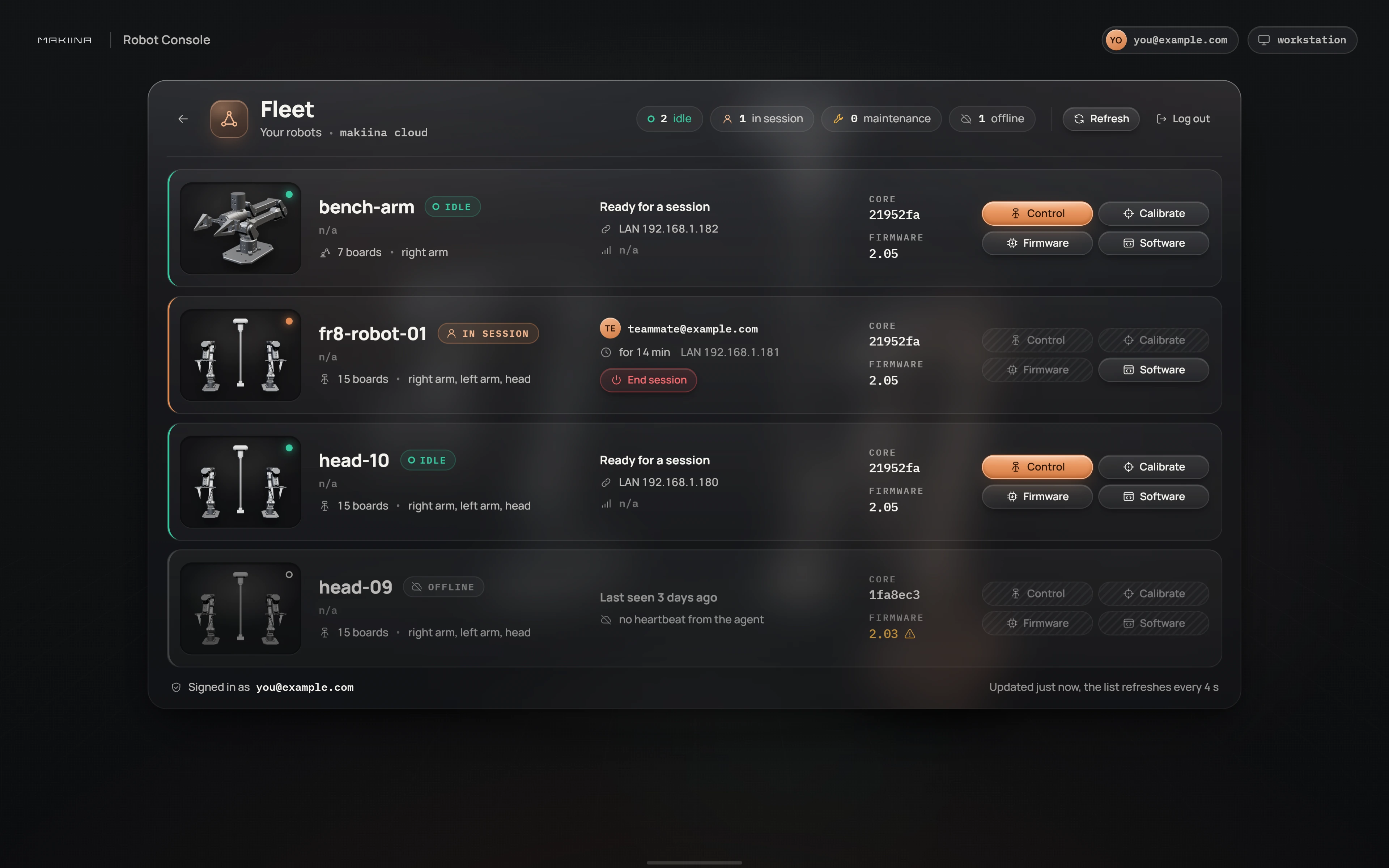
The fleet list shows every robot in your account with its state:
| State | What it means |
|---|---|
| Idle | Online and free. Control starts a session. |
| In session | Someone is connected. You see who and for how long. End session ends a session that was left behind, for example when an operator's PC went away without disconnecting. |
| Maintenance | Calibrate or Firmware owns the robot's buses. Sessions wait until the tool closes. |
| Offline | The robot's agent has not reported in; the row says when it was last seen. |
| Robot incomplete | The robot is online but one of its parts did not answer, and the row says which. See Troubleshooting. |
The list refreshes every four seconds. Each row also shows the SDK version (the core version) and the firmware the robot runs, and marks old firmware in amber.
Click Control on a robot's row.
from makiina.robot import Robot

robot = Robot.connect("head-10")
The same list is available from Python without opening a session:
from makiina.cloud import Fleet

fleet = Fleet.login()                       # same credentials as the console
for r in fleet.robots():
    print(r["name"], r["online"], r["status"])
Watch the session start
Between the click and the cockpit the console shows each step of the session start, with how long it took:
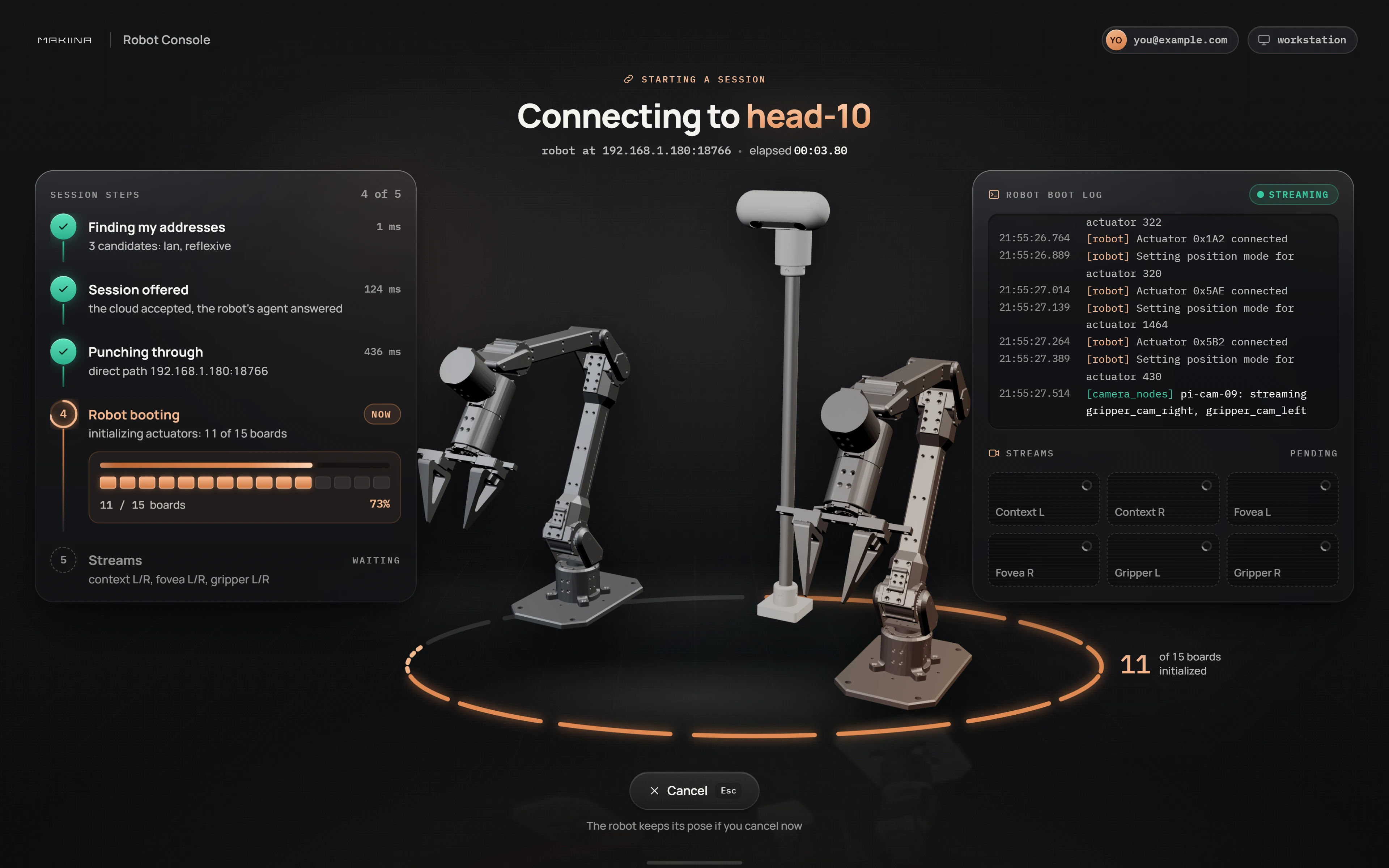
For a robot in your fleet the steps are: finding the addresses this PC can be reached on, offering the session through the cloud, punching a direct path to the robot, the robot booting its drives (with a count of the boards that are up), and the camera streams arriving. The robot's own boot log scrolls on the right. The cloud only introduces the two sides; video and control then flow directly between your PC and the robot.
For an arm on your PC the steps are shorter: the robot server starts on your adapters, takes the bus and reports the first joint state.
Cancel (or Esc) stops the attempt.
Check the session and disconnect
Click the connection readout in the middle of the cockpit's top bar (the path, the ping and the state rate) to open the session card. It shows the robot, how the session was set up, the network path, the ping, the state rate and the video streams, with the latest console messages underneath.
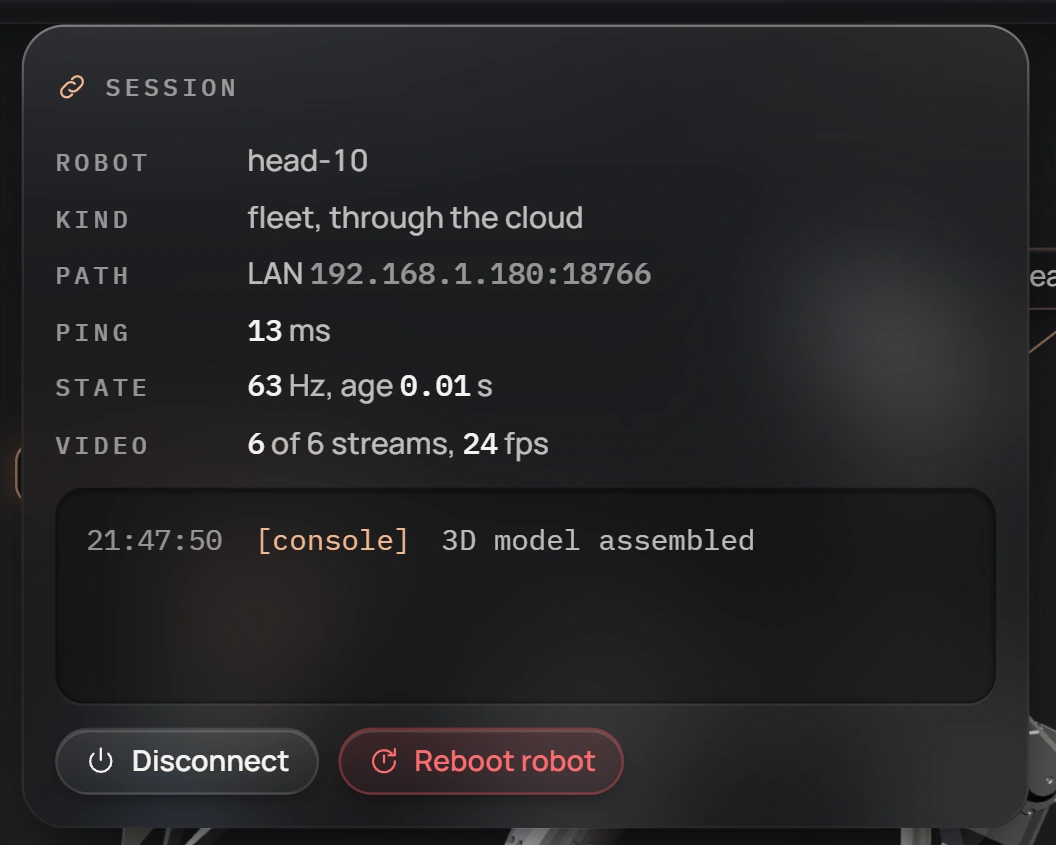
Disconnect ends the session and leaves you on the page. Exit in the top left ends it and takes you back to the list.
robot.disconnect()Disconnecting does not change what the motors do: an arm that was holding its pose keeps holding it. Turn the torque off first if it should go limp.
Reboot robot restarts the robot's own computer. The motors lose power, so the arms settle under their own weight. The robot is back in about a minute.
Move between pages
Every robot has five pages, listed in the menu next to its name in the top bar: Control, Tuning, Calibrate, Firmware and Software. Control and Tuning share one session, so you can switch between them while connected. Leaving for any other page ends the session. [ and ] step through the pages.
Calibrate and Firmware are maintenance tools; the arms and robots ship without needing them. They are described in Calibration and firmware.