
Set up your systemActuatorFirst move
First move with an actuator
Set limits, move the output a small distance, read its response, then stop and release it in the Actuator Console.
You will move one actuator by 0.05 rad, about 2.9 degrees, and see its measured position follow the target. Start with the actuator connected and identified, its body secured and its output unloaded and free to turn. The pictures show a simulated M actuator.
Look around before you move
Open your actuator from Discover, then choose Control on the left. Check its ID in the top bar. The model represents the selected actuator; the panels show its drive mode, limits and motion controls.
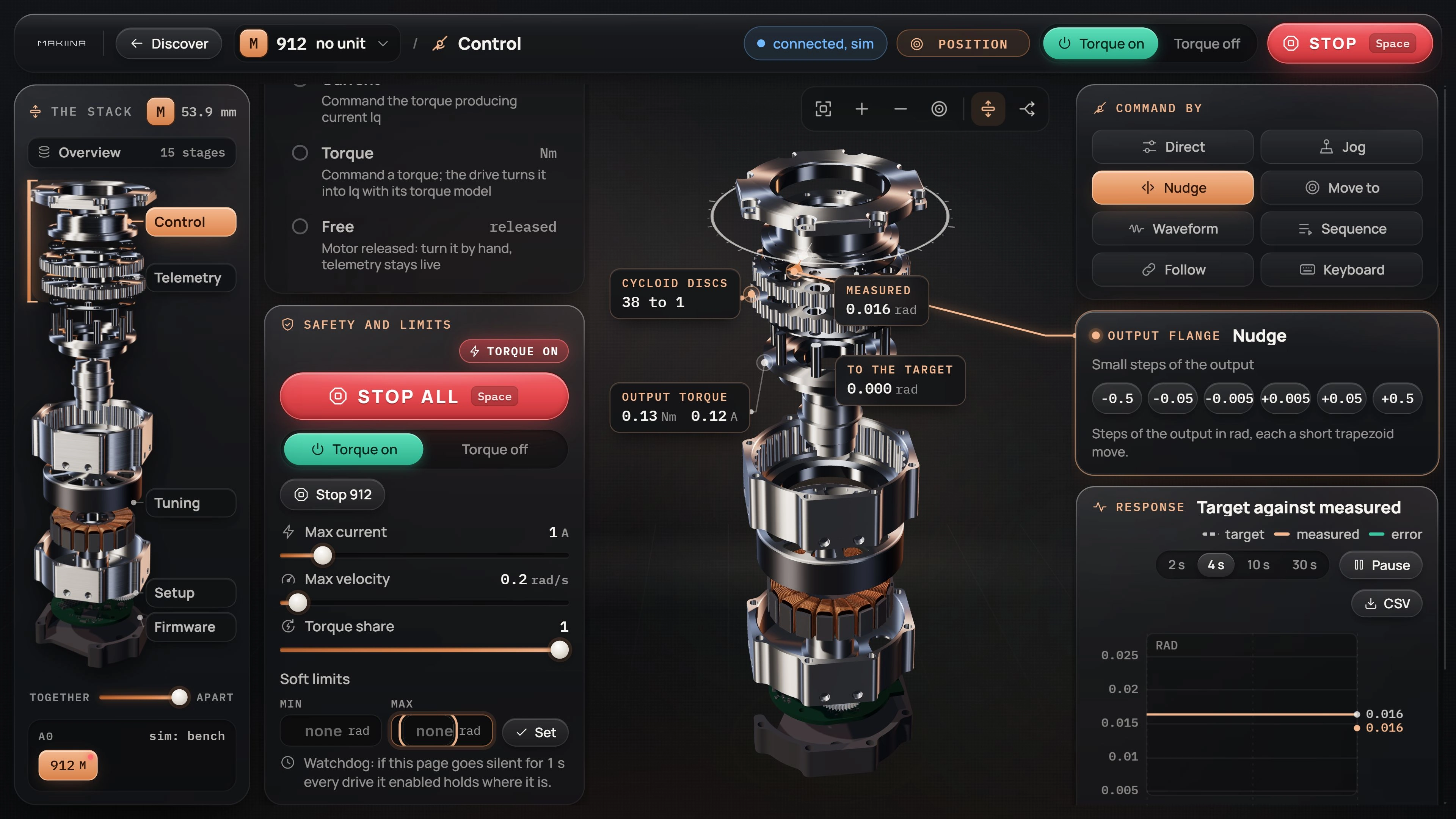
Torque on gives this Console control of the actuator. There is no Robot Console ARM switch here. A drive that has not been enabled by this Console may still be holding under its own power.
STOP in the top bar and STOP ALL on Control end motion on every drive this Console enabled and hold their measured positions. The smaller Stop button with a board ID stops only that actuator.
Check the units
For a known M or S actuator, Control uses rad and rad/s at the output flange, the part your mechanism attaches to. One full turn is about 6.28 rad. The live motor readings and Tuning settings are labelled separately.
The Python actuator API uses motor-shaft angles and speeds. For a current M actuator, 0.05 rad at the output is 1.9 rad at the motor (38 times as much). An S uses 39 to 1. An older M may also use 39 to 1; confirm the physical gearbox and select Old M: use 39 to 1 on Setup for that Console session before relying on the output readings.
If the page says rad motor, return to Check which actuator you found before following the output-angle example.
Set the limits
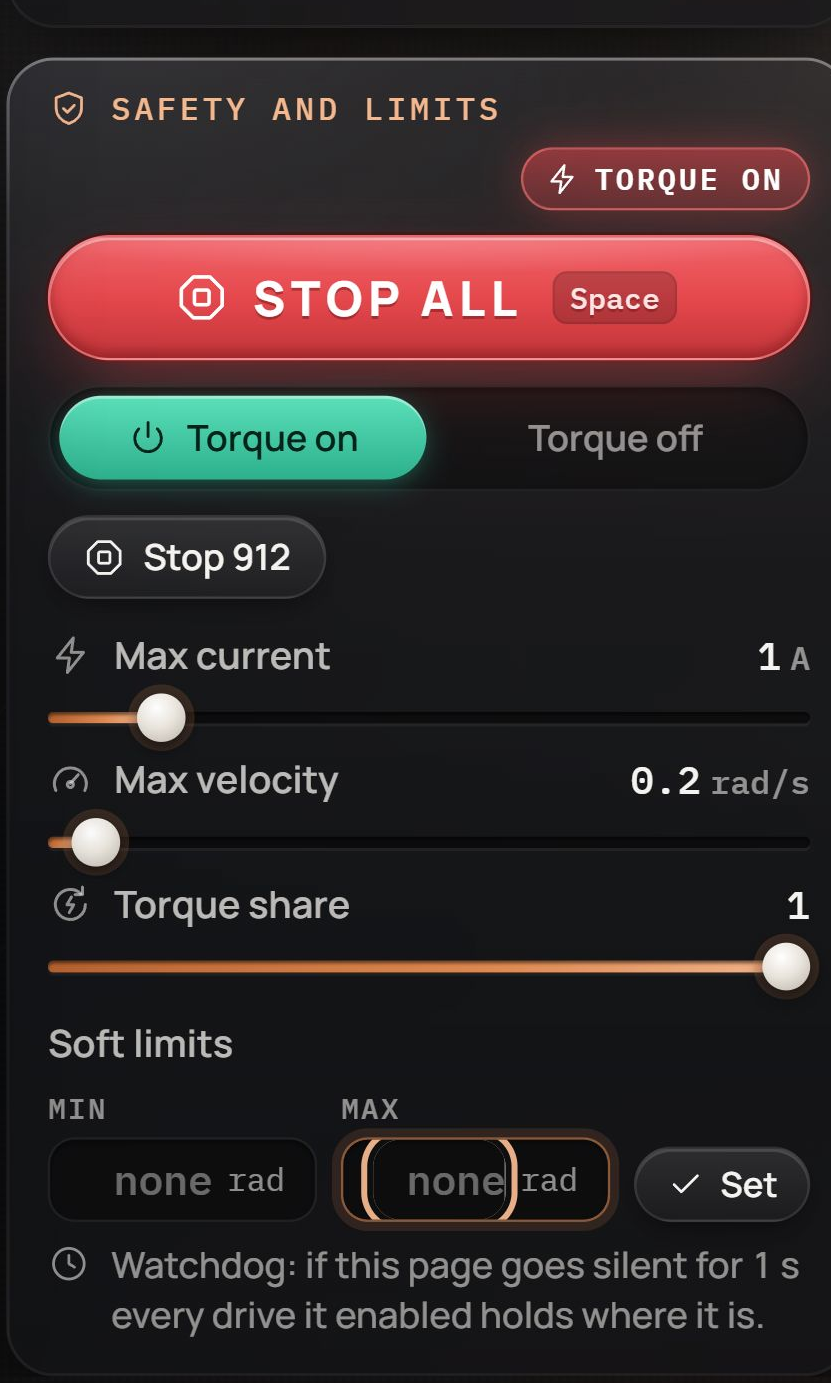
In Safety and limits, set Max current to 1.0 A, Max velocity to 0.2 rad/s, and Torque share to 1.00. These are starting values for this small, unloaded bench move, not limits for every mechanism. Torque share multiplies Max current; 1.00 uses the full limit you set.
The sliders apply when you release them. Check the displayed values before continuing. Leave Soft limits empty for this unloaded example; in a mechanism, set a range inside its physical travel before commanding motion.
Enable control and make a small move
- Press Torque on. On the first enable, it holds where it is and gradually applies the current limit. Wait for the transition to finish.
- Check that Position is selected under Drive mode.
- Under Command by, select Nudge.
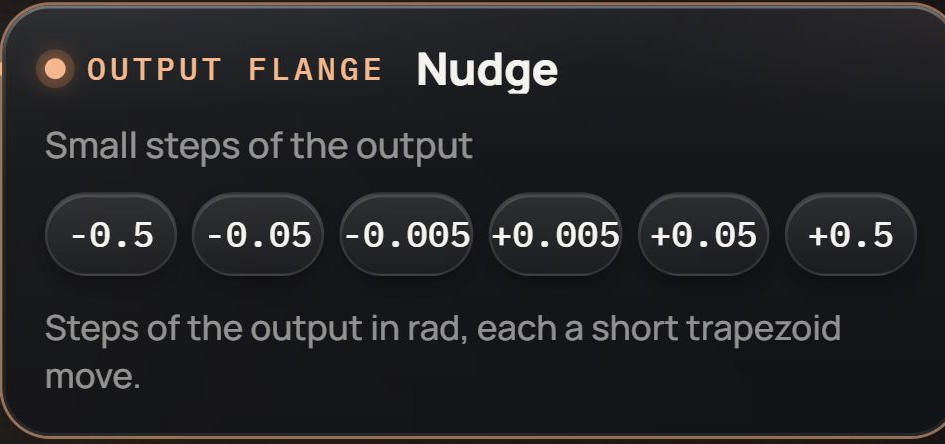
- Press +0.05 once. The output turns a small positive step, limited by the speed you set, then holds its new position.
- Wait for it to settle, then press -0.05 once to return.
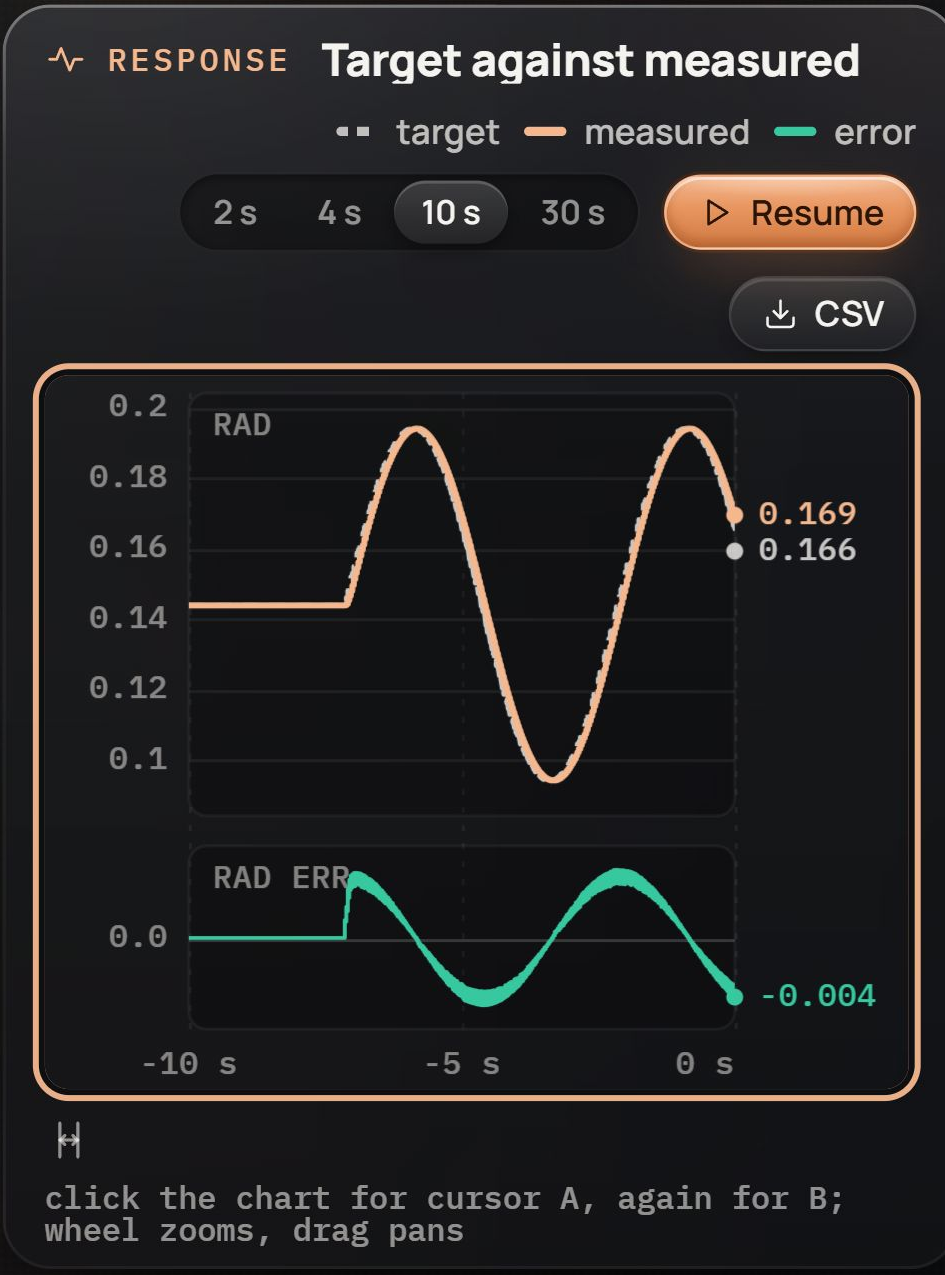
The Response chart plots target and measured position. During a move, the target leads; as the output settles, the measured line should approach it and the error should fall. A small following error is different from no response at all.
If it does not turn, check Torque on, the selected actuator, Position mode, soft limits and any warning. If the measured position stays behind the target, stop and check for a mechanical obstruction or load before raising current. Read and record telemetry shows how to inspect the response more closely.
Stop and release
Press STOP. Motion ends and enabled drives hold where they are. The Space key does the same unless you are typing in a field or operating a control that uses Space.
To release the output, support anything it carries, press Torque off and confirm. Current reduces over about three seconds. A loaded joint can fall before the ramp ends; the ramp does not control its descent.
Turning torque on again can return gradually to the previous position target over about four seconds. Keep that path clear. A new motion command replaces the return; STOP interrupts it.
Closing the browser is not Torque off. With the default watchdog, a closed page or one silent for a second makes enabled drives hold. The desktop launcher exits after the last tab closes, allowing about five seconds for refreshes and waiting for hardware jobs to finish. It then frees the adapter.
Continue by task
- Command motionUse Jog, Move to, waveforms, sequences or Follow, and choose a drive mode.
- Tune and save settingsRead values, apply a change, test its response and keep a profile for the next session.
- Read and record telemetryInspect position, current and temperature, then save the window or a recording as CSV.
- Maintain the actuatorUpdate firmware, configure a replacement board, or resolve an ID collision.
- Drive it from PythonClose the Console to free the adapter, then find and command the same drive in code.