
Set up your robotDual arm systemSell or return the robot
Sell, give away or return the robot
Make a claim code for the robot's next owner; when they use it, the robot moves to their account and resets its SSH keys and device code by itself.
A dual arm system changes owner the same way it first came to you: with a claim code. At the end of this page you have a claim code for the next owner, and you know what the robot does by itself when they use it. Only an owner of the robot's organization can release it.
Make a claim code for the next owner
Open the Robots page of the account console,
cloud.makiina.com/account, and open MANAGE on the robot.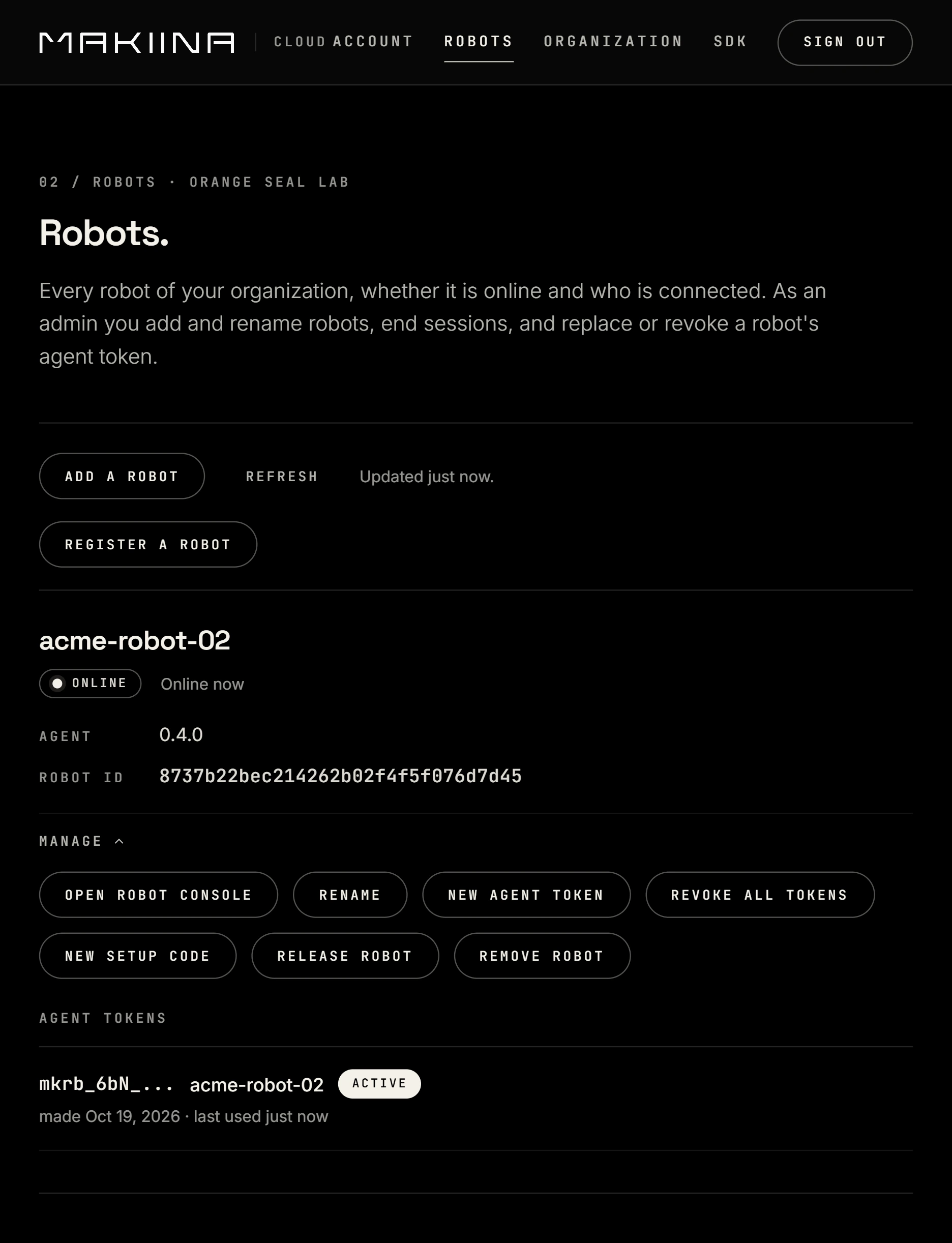
Press RELEASE ROBOT, read what will happen, type your password (and your two step code, if you use one) and press MAKE A CLAIM CODE.
Note the claim code. It is shown once, with a link that has the code in it. Give the code or the link to the next owner with the robot.
The robot's Cloud page in the Robot Console on your PC does the same with Make a claim code for the next owner, from anywhere, and so does the Cloud tile of the Robot admin page:
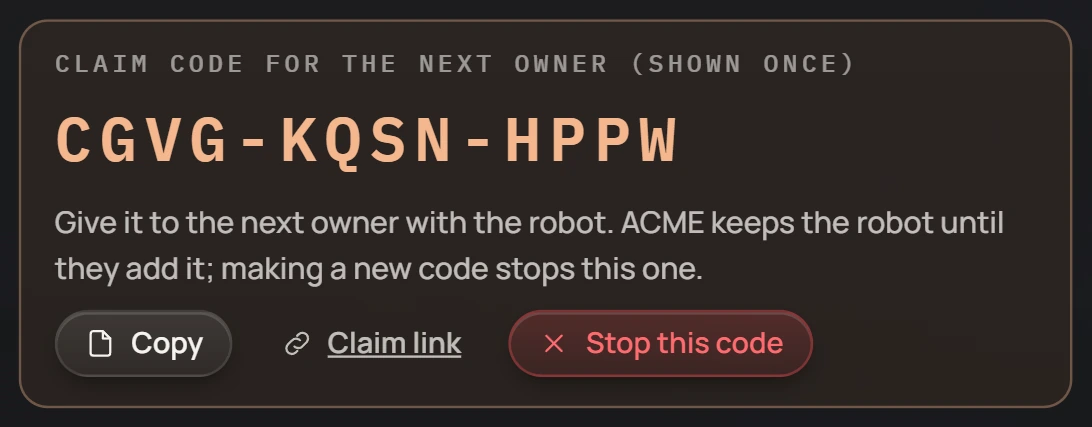
Until the next owner uses the code, the robot stays in your organization and keeps working as before. The robots list marks it RELEASED.
To call it off, open MANAGE on the robot on the Robots page and press STOP RELEASE: the code stops working. Making a new code also stops the older one. The robot's Cloud page shows Stop this code only next to the code it made, until you reload or close the page; after that, use STOP RELEASE.
Returning the robot to MAKIINA, for a repair or a return: release it the same way and send the claim code to MAKIINA with the robot.
What happens when the next owner adds it
The robot moves to their organization at once, and any running session ends. Records of your past sessions stay with your organization. As soon as the robot is online and hears about the move, it resets itself:
- It removes every SSH key added on it from both computers and puts back the MAKIINA factory key, as when it left the factory.
- It makes a new device code. The old one stops working, and a browser that kept it asks for the new one.
- It signs out every browser that has its Robot admin page open with your device code or your account.
A robot that is switched off during the move does all this the moment it comes back online.
The next owner's device code
The next owner, or an admin of their organization, finds the robot's new device code with their account, on a computer on the robot's network, the same way as every owner: Find the device code. They need it only for the Robot admin page without the account.