
Set up your robotDual arm systemQuick start
Quick start for the dual arm system
From a dual arm system on the desk to a robot that moves: add it to your MAKIINA account, then make its first move from the Robot Console, from Python and from the VR app.
At the end of this page your dual arm system moves under your control. It should stand on your desk, cabled and switched on (Unboxing and setup shows what plugs where). You need the robot's card, a PC with Windows or Linux and an email address you can read now. The page has two parts: first add the robot to your account, then make its first move.
Add the robot to your account
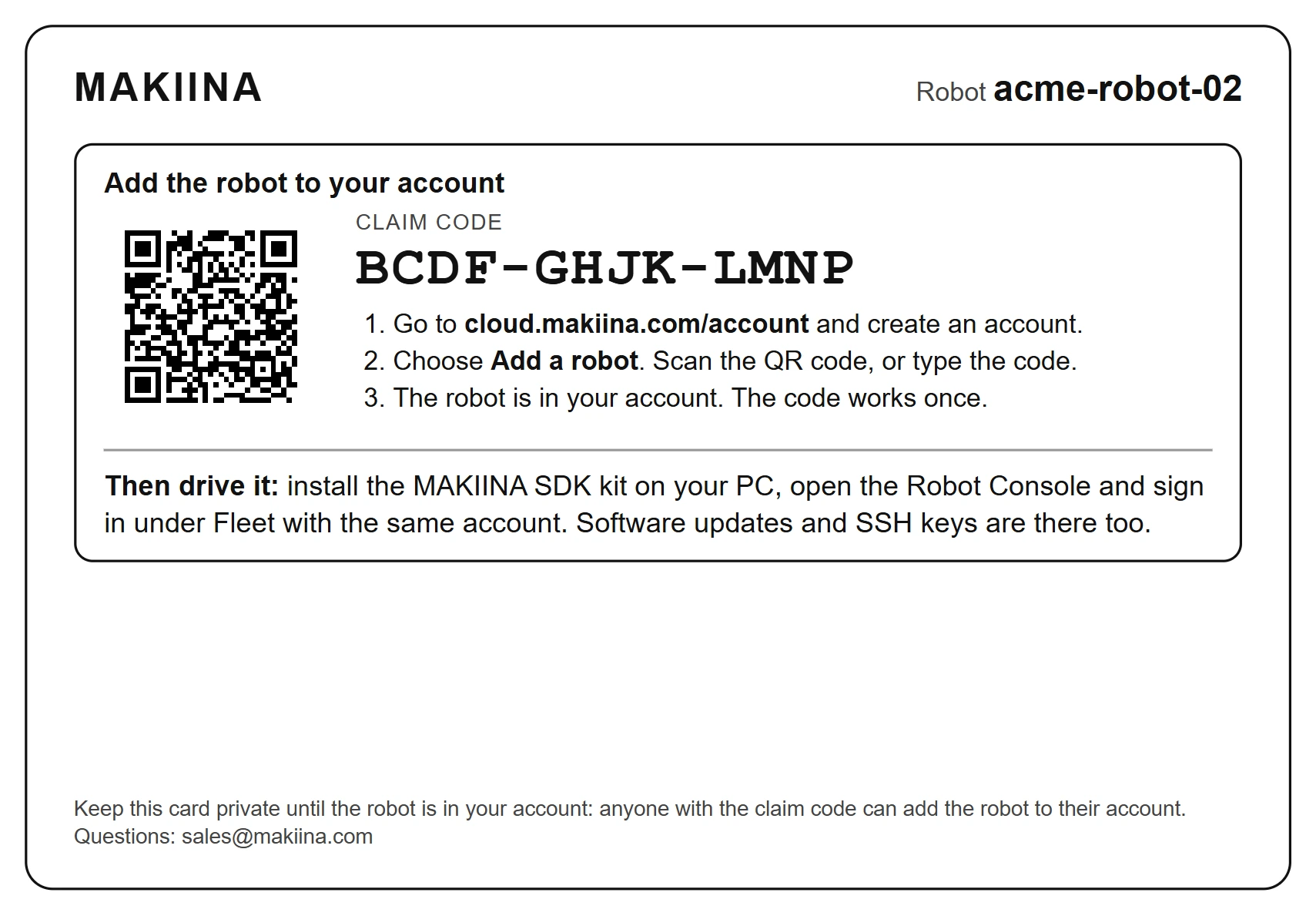
Every dual arm system leaves the factory in MAKIINA's own stock. The claim code on the robot's card moves it into an organization of yours. A phone works for this part, and so does any computer with a browser, wherever it is: it does not need the robot's network.
The card carries one code, the claim code: 12 letters like BCDF-GHJK-LMNP, and a QR code that carries the same code. It works once; after that it does nothing. Keep the card private until the robot is in your account: whoever uses the claim code first gets the robot.
The order is: your account first, with its email address confirmed, then your organization and the robot together. Signing up makes no organization, and MAKIINA Cloud has no separate button that creates one. You name it on the page where you add the robot, and it is made at the moment the robot goes into it, with you as its owner.
Create your MAKIINA account
- Open
cloud.makiina.com/accountin your browser. Scanning the QR code on the card with your phone's camera opens the same pages and brings the claim code with it. The page holds the code until you reload or close it. - Press CREATE AN ACCOUNT in the box New to MAKIINA Cloud? on the sign in page. If you have a MAKIINA account already, sign in instead and go on with the next section.
- Fill in the form: your name, your email address and a password of at least 12 characters, twice. Press CREATE MY ACCOUNT.
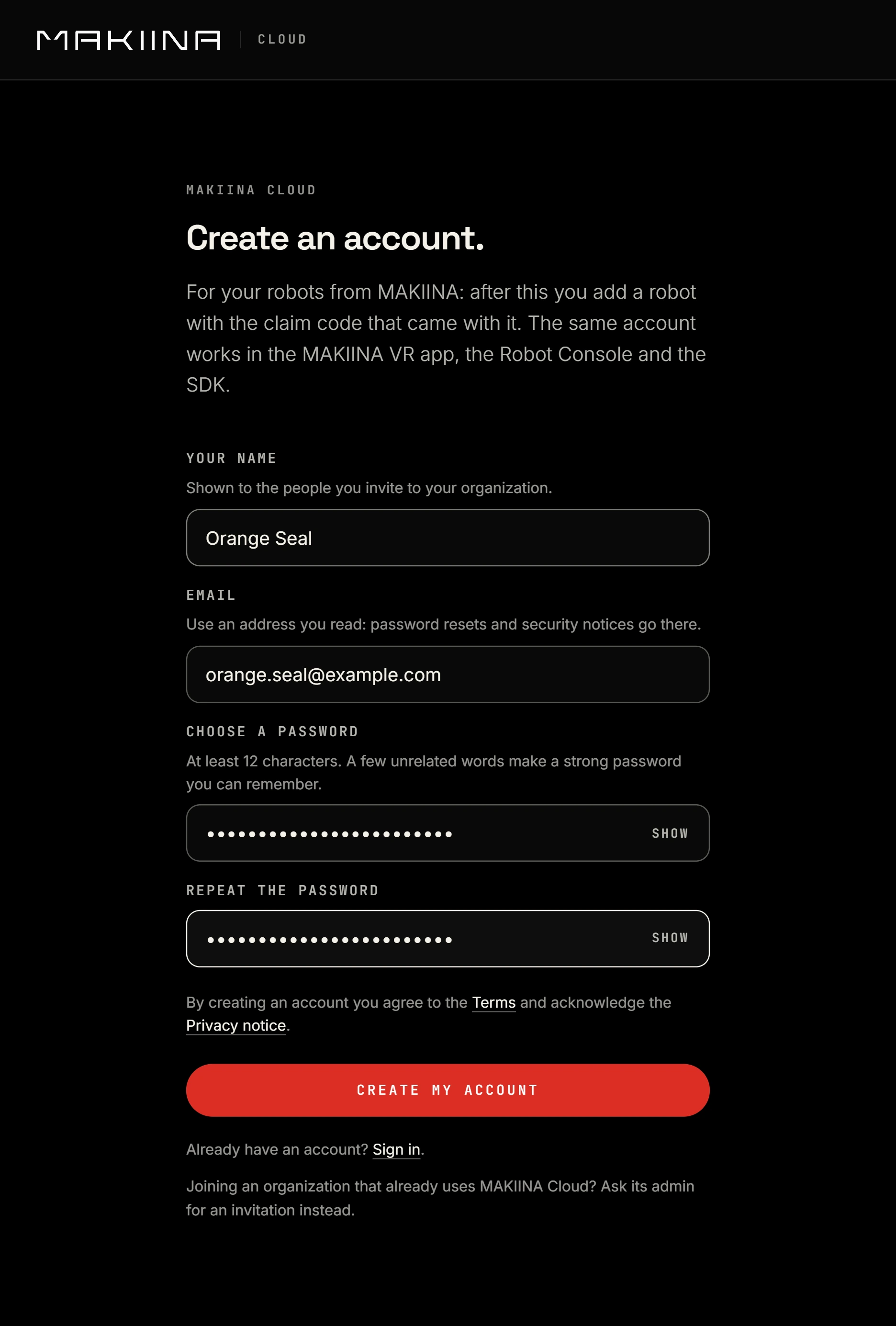
You are signed in, and the page Add a robot. opens. If you came from the QR code, it says Add acme-robot-02. (with your robot's name) and has the code filled in. Leave that page open, without reloading it, and confirm your email address first.
Confirm your email address
An account whose email address is not confirmed cannot add a robot. MAKIINA Cloud sends the mail for it as soon as you have signed up.
- Open the mail from MAKIINA Cloud, on any phone or computer, and open its link. The link works once, for 24 hours.
- Press CONFIRM MY EMAIL ADDRESS on the page the link opens. The page then says Email address confirmed.
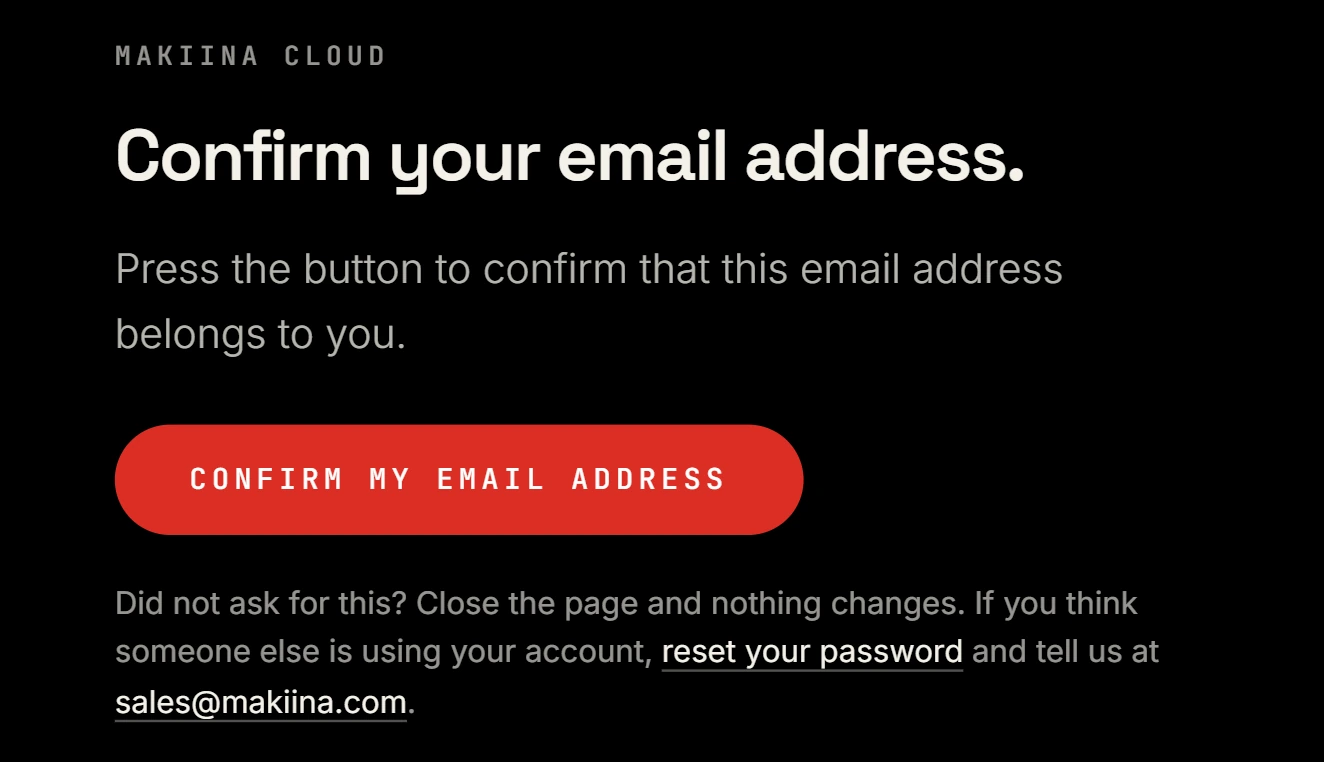
Until then, every page of the account console shows the banner Confirm your email address. Its SEND THE LINK AGAIN sends a new mail (the newest link replaces the older ones), and CHANGE EMAIL ADDRESS fixes a mistyped address. If no mail arrives within a few minutes, look in the spam folder. A page that was open while you confirmed keeps the banner until it loads again or the robot is added. Add the robot from it all the same.
Create your organization and add the robot
Type the claim code from the card on Add a robot. (on the Robots page, ADD A ROBOT) and press CONTINUE. Dashes and lower case are fine. If you came from the QR code and that page is still open, the code is filled in already. After a reload the page asks for the code: type it, or scan the QR code again.
Name your organization. The page now says Add acme-robot-02., with the robot's name and the code. Under Name of the new organization, type the name of your company or lab, or keep the name it suggests, made from your own name. The organization holds your robots and the people who may use them, and you can rename it later under Settings on the Organization page.
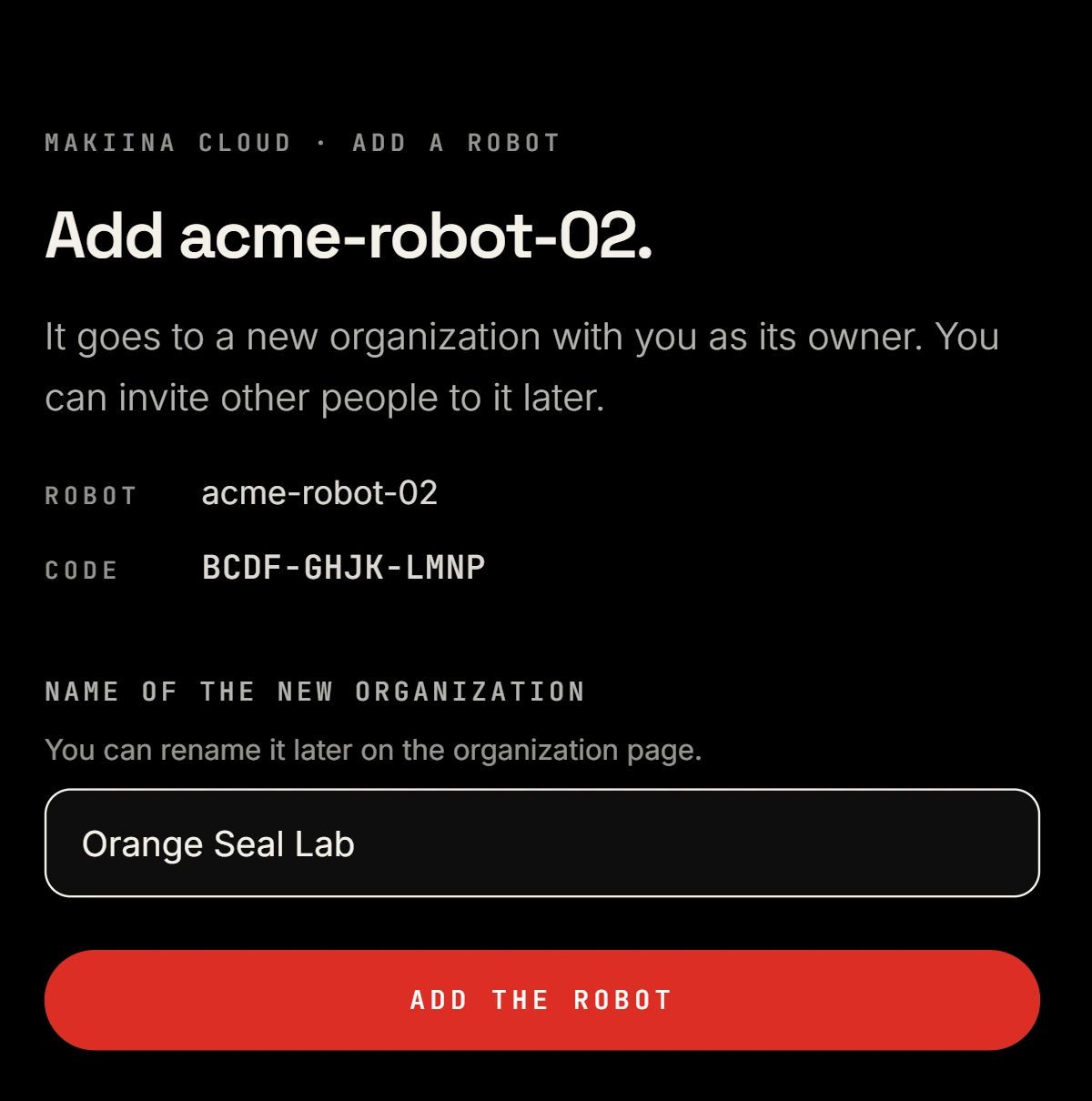
Press ADD THE ROBOT. The Robots page opens and says that the robot is now in your organization and that you are the owner of this new organization. Within a minute of being switched on, the robot shows Online now.
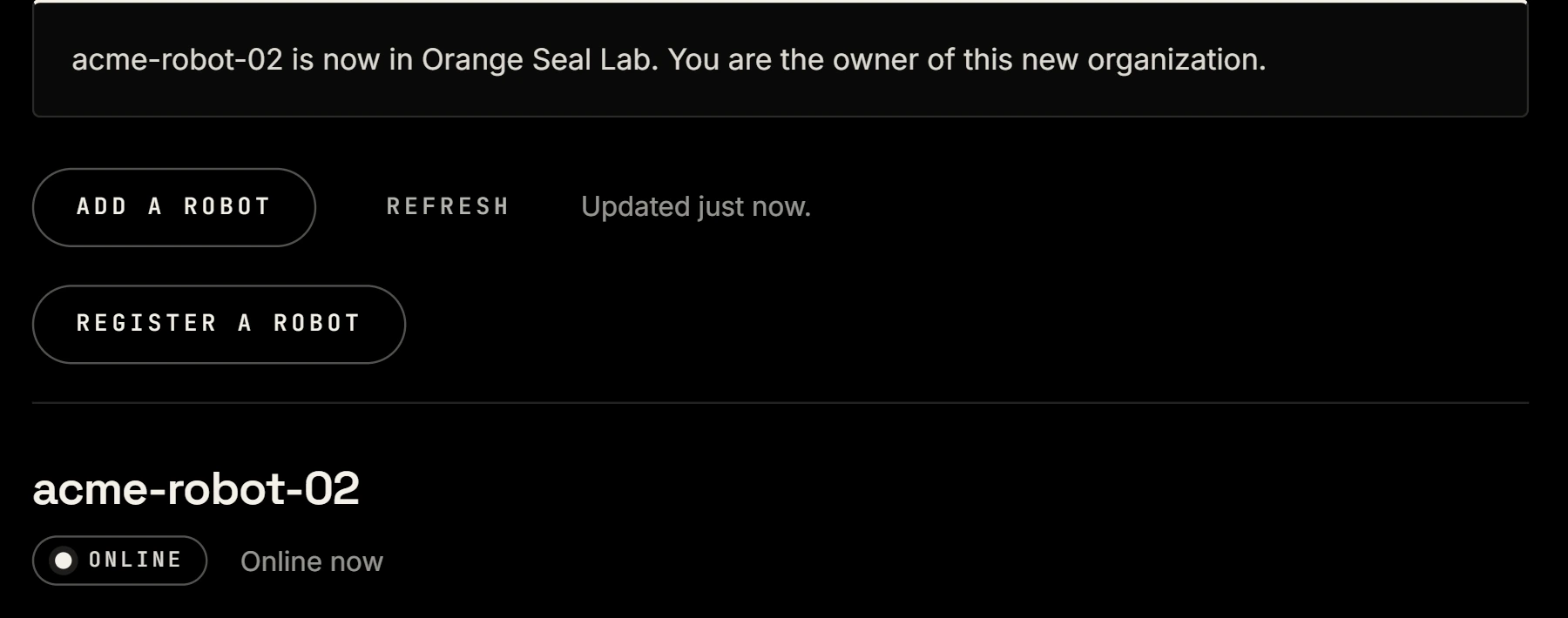
If the page says Confirm your email address first, confirm it as above and press ADD THE ROBOT again. The claim code is not used up by that.
For your next robot, step 2 lists the organizations you are an owner or admin of, with A new organization as the last choice. With one organization it is chosen already.
If the code is refused, check the 12 letters: claim codes have no vowels and no digits. The claim code is refused has the other causes. If the robot stays OFFLINE, see The robot shows OFFLINE.
Invite your colleagues
Everyone signs in with their own account. You invite them from the account console:
- Open Organization at the top of
cloud.makiina.com/account. - Under Invite someone, type their email address and choose a role.
- Press SEND INVITATION. They get a mail with a link that works for 7 days.
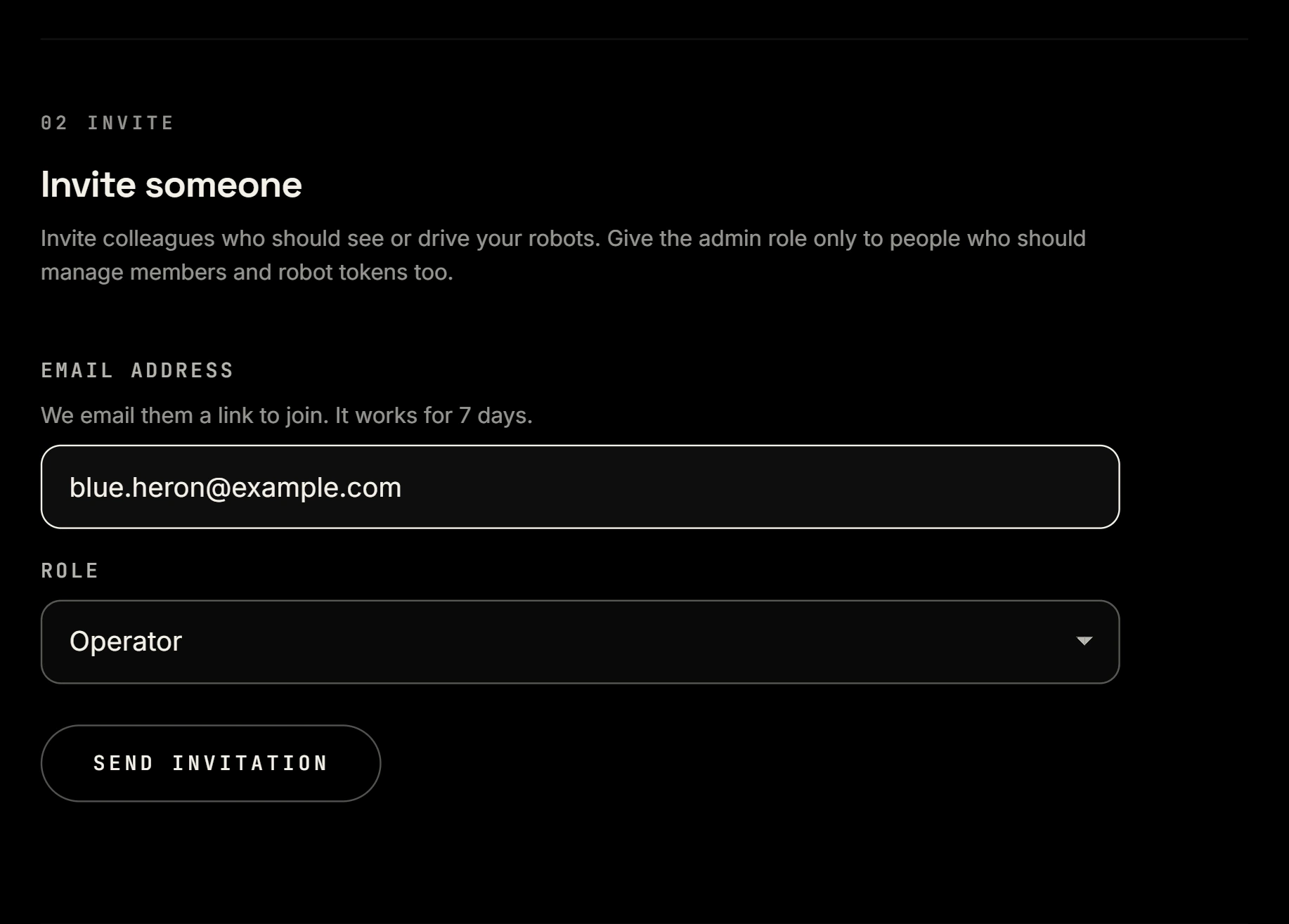
| Role | May |
|---|---|
| Owner | Everything an admin does, plus organization settings, other owners, releasing robots to a next owner, and closing the organization. |
| Admin | Members, invitations, robots and their agent tokens; ends any session. Opens the robot's pages that work over its network in the Robot Console with their account: Software, SSH access, Calibrate, Firmware, Cameras and the device code on Cloud. |
| Operator | Sees the robots and opens sessions with them. Of the pages that work over the robot's network, opens only the status and logs on Software. |
| Viewer | Sees the robots and their state; cannot connect. |
Two step sign in is optional. Turn it on for your own account under Account, Two step sign in. What MAKIINA keeps about you, a download of it and deleting your account are behind YOUR DATA at the bottom of every page of the account console.
Add it from the Robot Console on your PC instead
The account console, as above, is the way the card describes and the way these pages follow. The Robot Console on your PC does the same with the same claim code, if you have the SDK kit installed already. The account needs a confirmed email address here too.
Start the Robot Console and open Fleet. Sign in, or make an account on the New account tab and confirm its email address: open the link in the mail it brings and press CONFIRM MY EMAIL ADDRESS. A new account says No robots in this account yet.
Press Add robot at the top of the list, type the claim code and press Check the code.
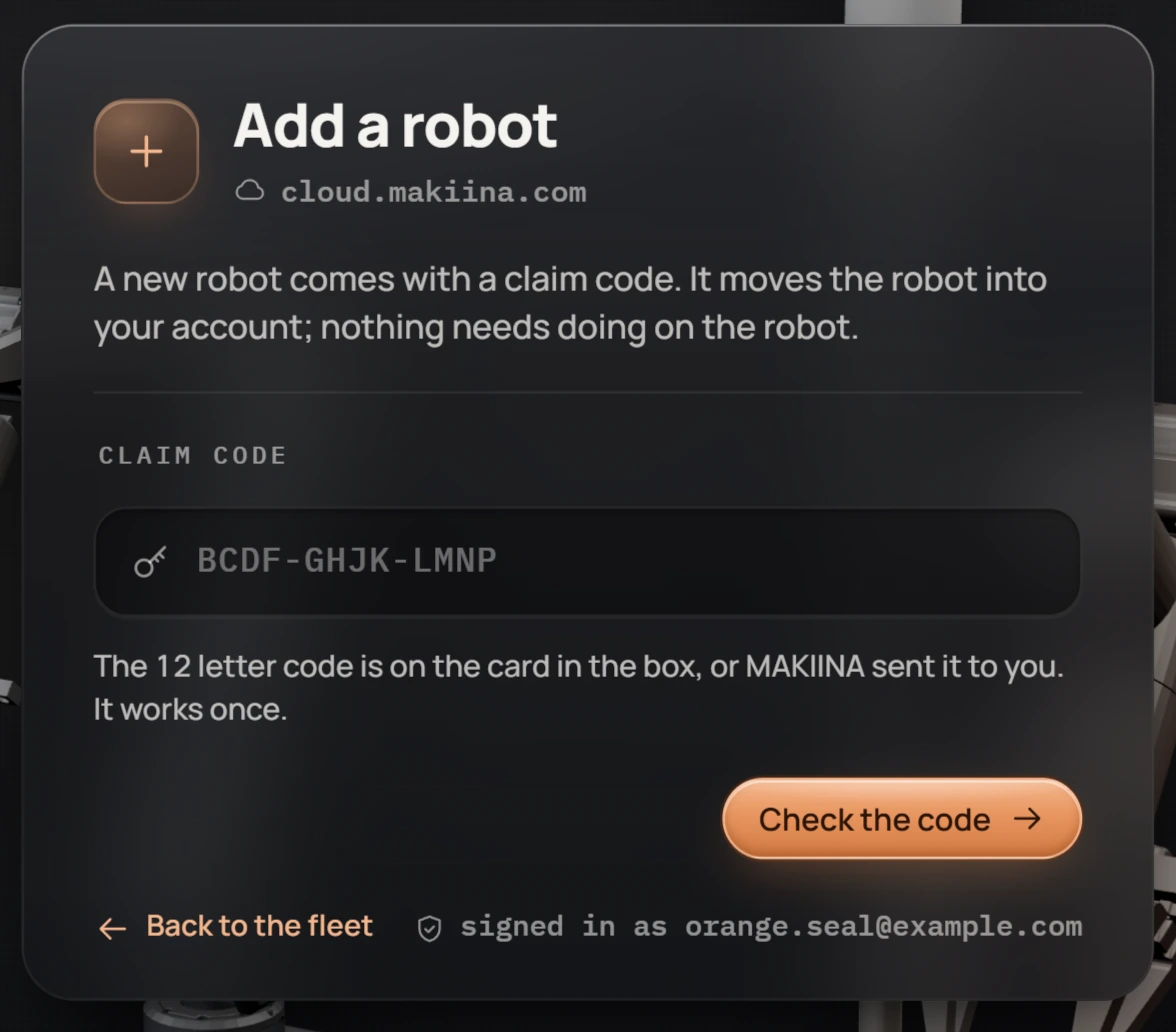
The console shows the robot's name. Choose the organization, or type the name of A new organization, and press Add the robot.
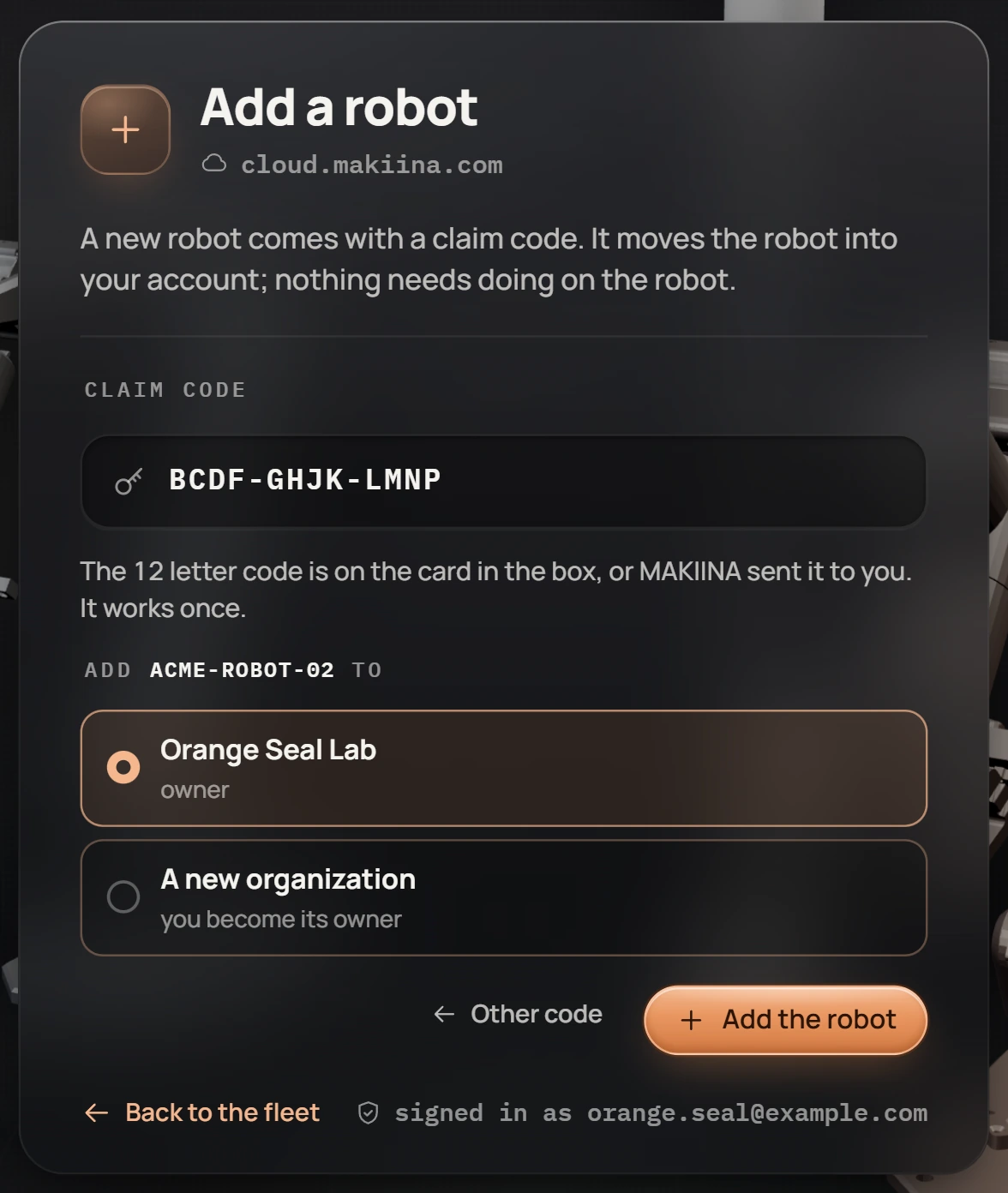
The robot is in the list, in your organization. Nothing needs doing on the robot.
First move
Now drive the robot from the Robot Console on your PC. Your PC needs the SDK kit and an internet connection, but it does not have to be on the robot's network.
Get the SDK kit
The SDK kit downloads from your MAKIINA account. It holds the Robot Console, the makiina Python package and its own Python.
Sign in at
cloud.makiina.com/accountand open SDK at the top.Press GET DOWNLOAD LINK on the row of your PC, under Download the SDK: Windows x64, Linux x64 or Linux ARM64.
Press DOWNLOAD NOW. The link works for 24 hours, for anyone who has it, in a browser or with
curl. To fetch the kit on another computer, press COPY LINK and use the link there:curl.exe -f -o makiina-sdk.zip "<the link>" # Windows, in PowerShell curl -f -o makiina-sdk.zip "<the link>" # LinuxIn PowerShell,
curlwithout.exeis another command and fails.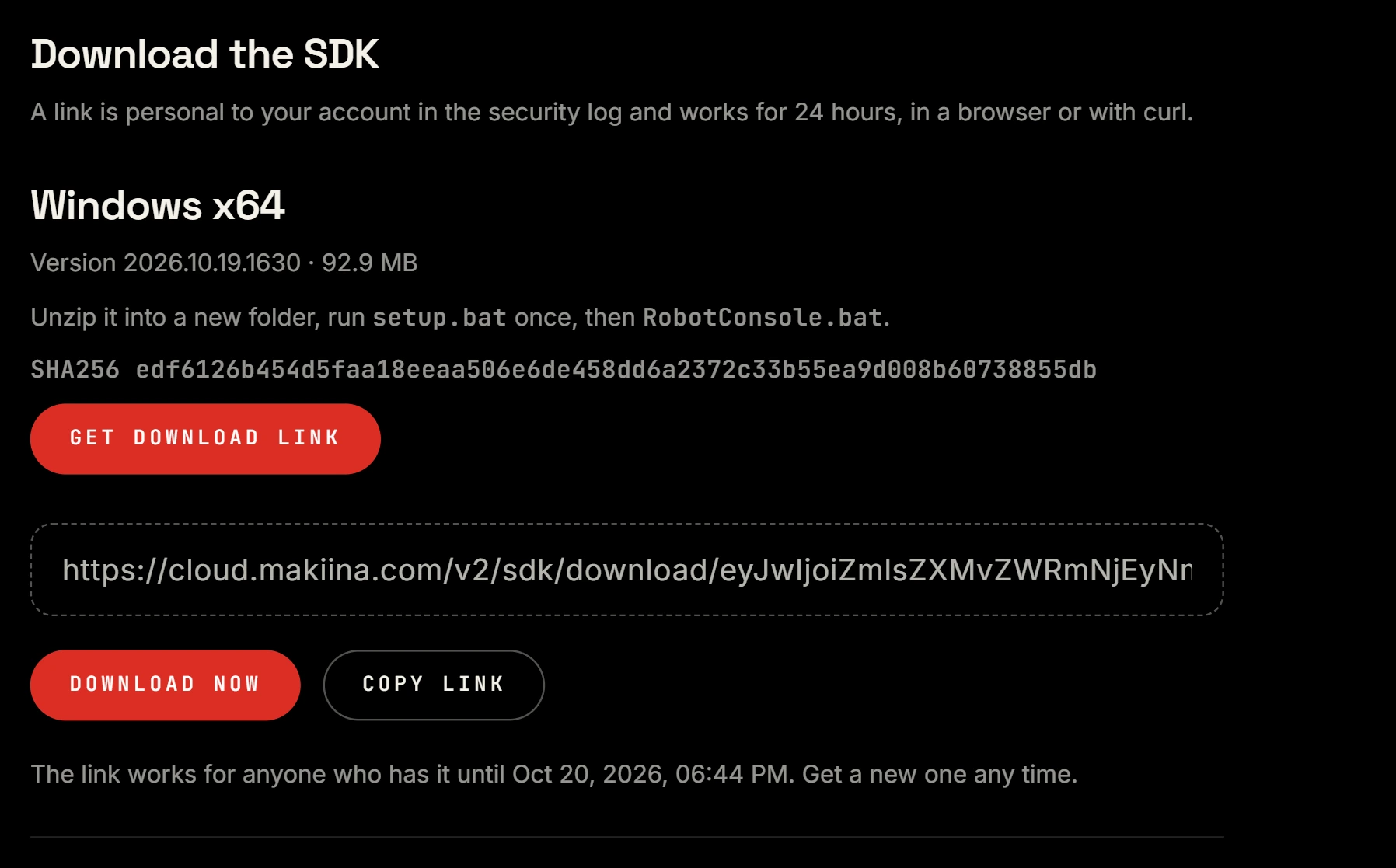
The SDK page of your account after GET DOWNLOAD LINK: press DOWNLOAD NOW, or copy the link to another PC. It works for 24 hours. Unzip it into a new folder with a short path, such as
C:\makiina, and run setup once: double-clicksetup.baton Windows, or run./setup.shon Linux. It takes about a minute. Install the SDK has the details.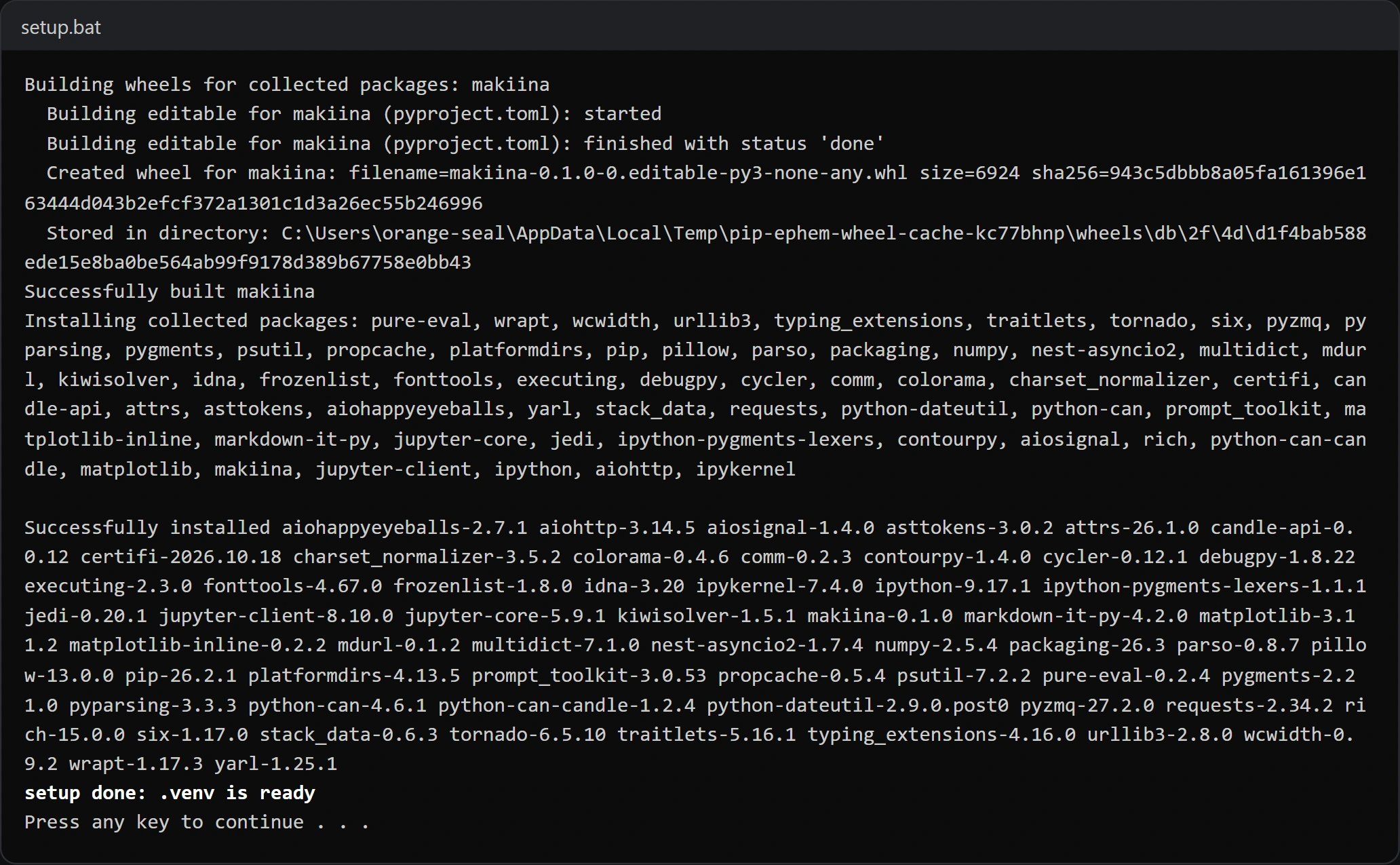
The end of setup. A double-clicked setup.bat then waits for a key before it closes its window, and the kit folder has a .venv folder. On Windows, make sure the Visual C++ Redistributable is there. The SDK's native core needs the Microsoft Visual C++ Redistributable (x64), which most PCs have. Without it no session starts: Control stops with an error that names
makiina.dll. If you are not sure, run Microsoft's installer, vc_redist.x64.exe; it does no harm on a PC that has it.
A newer kit shows on the same page. Get a new link whenever you need one.
Open a session from the Robot Console
Start the Robot Console from the SDK kit: double-click
RobotConsole.batin the kit folder (./robot_console.shon Linux). Your browser opens the console at http://127.0.0.1:8726, on your own PC.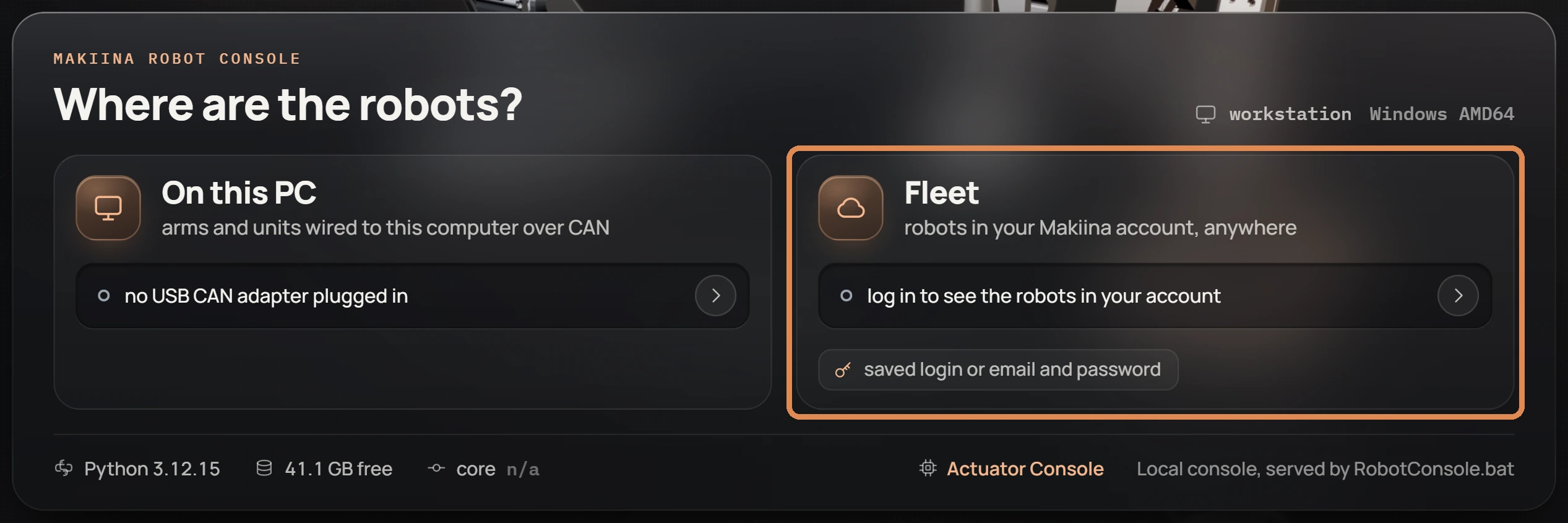
Open Fleet on the console's landing page and sign in with the email address and password of your MAKIINA account, then press Log in. The Code tab signs you in with an 8 letter code that you approve on your phone instead.
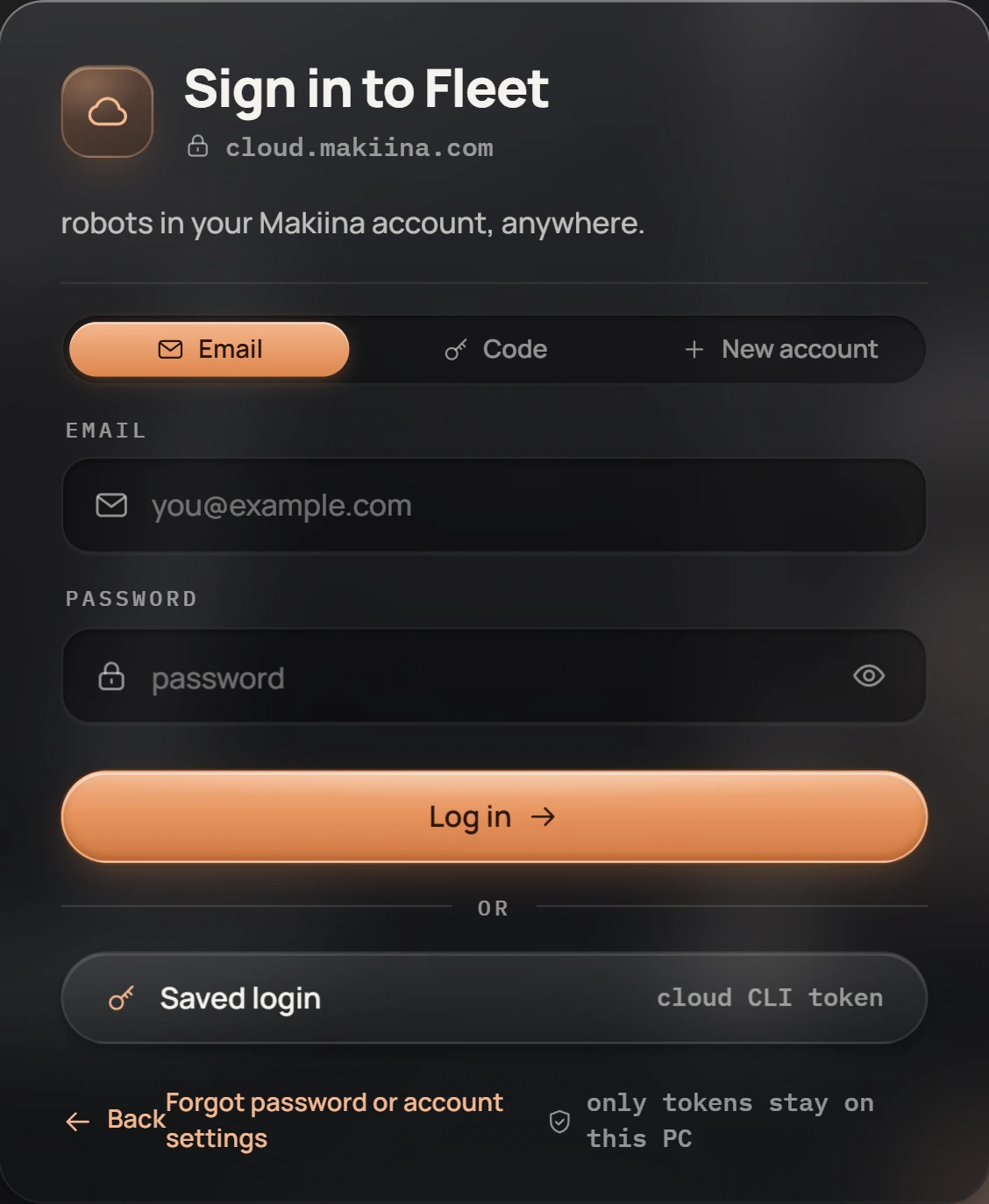
Find your robot in the list. It shows Idle and Ready for a session.
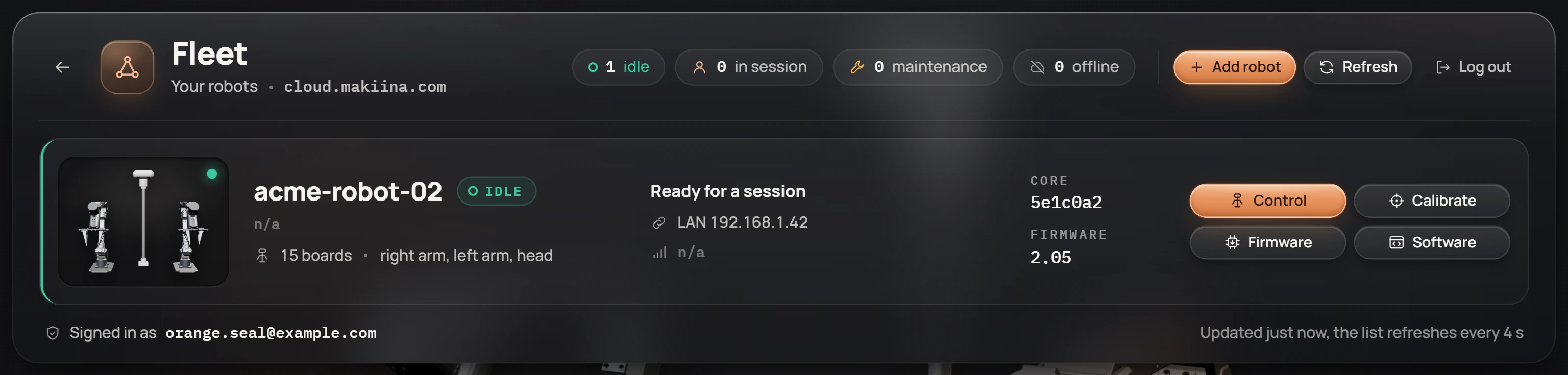
Click Control on the robot's row. The console shows each step of the session start and opens the cockpit when the robot is live: the 3D twin follows both arms and the head, and the camera feeds play.
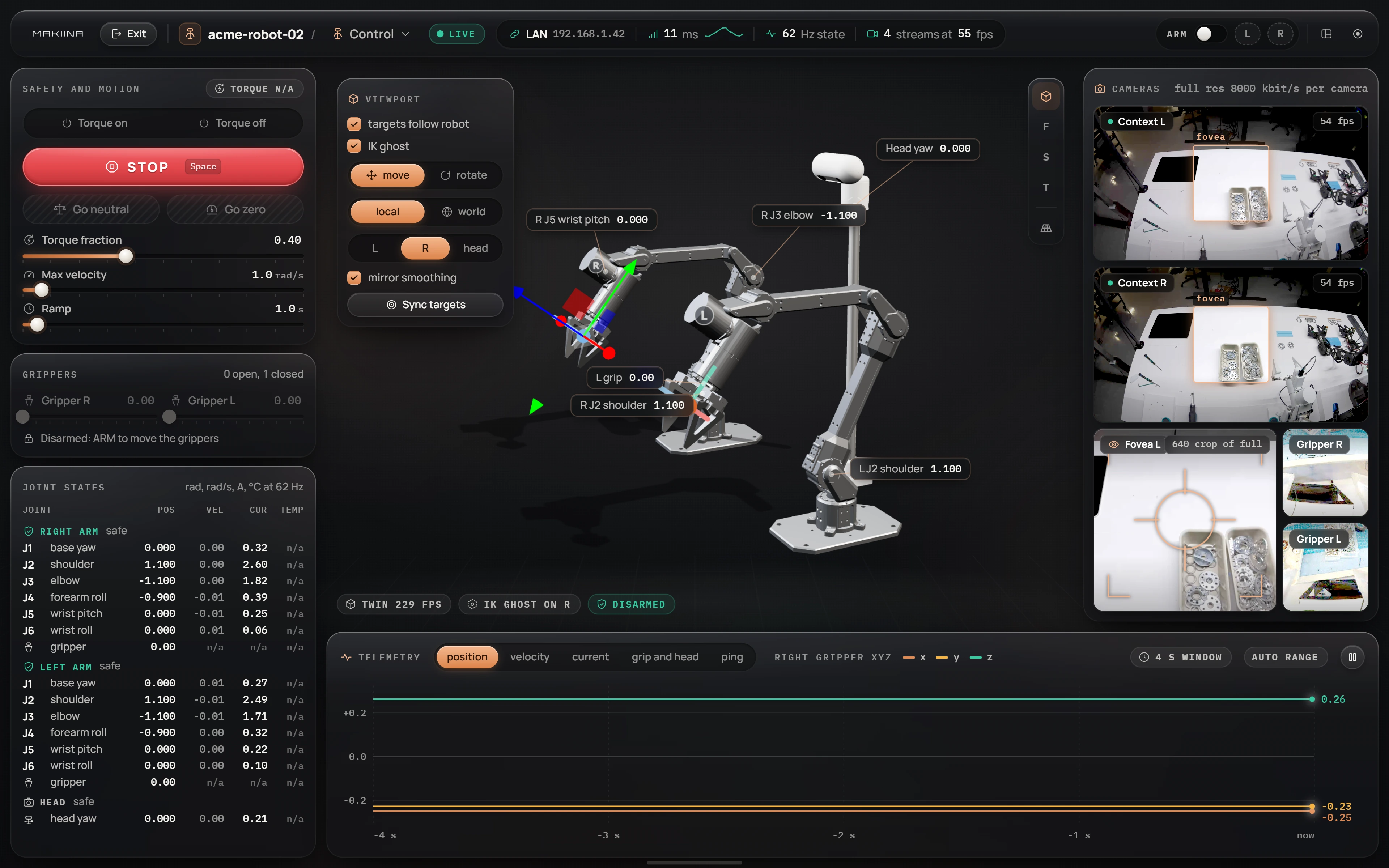
A live session: the camera feeds on the right, the 3D twin in the middle, both arms and the head in the joint list. ARM, top right, is still off.
Flip ARM on, then move
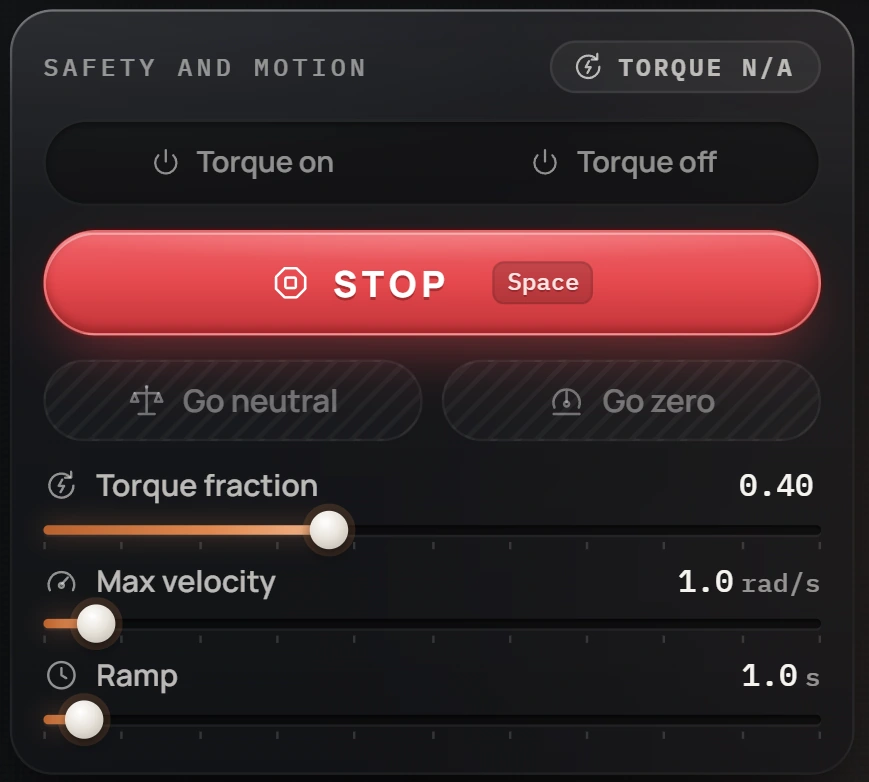
Set safe limits. In Safety and motion, drag Torque fraction to 0.40 and Max velocity to 1.0 rad/s. The robot applies both on its own side. Set them in every session, even when the sliders already show these values: a session starts every motor at its full current and speed limits. Leave Torque on alone: it gives the motors their full current limit for the rest of the session (Set torque and speed limits).
Flip ARM on. Clear the space around both arms first. The switch is in the top right corner of the cockpit; its L and R chips turn red when the arms are armed. Until ARM is on, nothing moves.
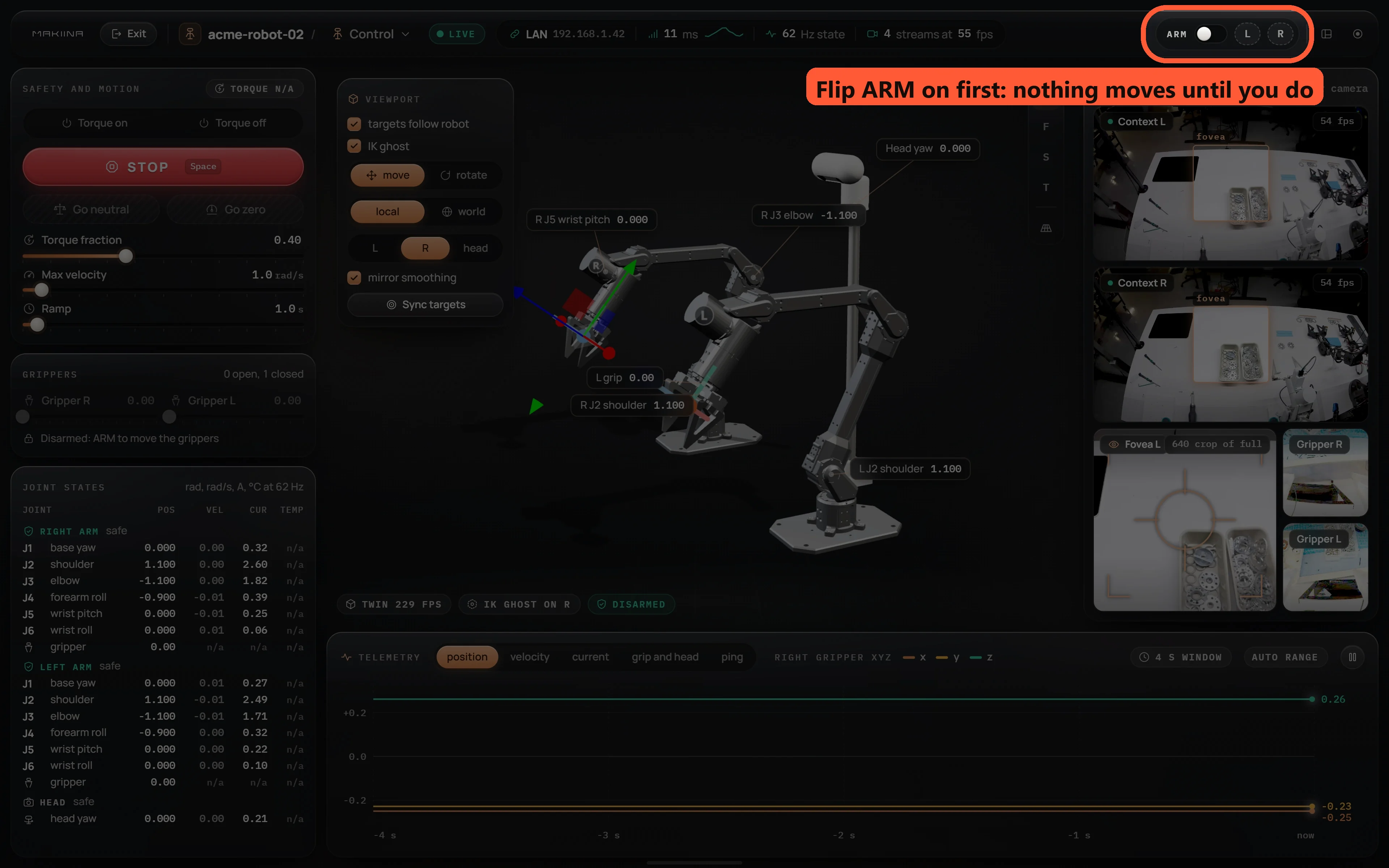
Flip ARM on first: the switch in the top right corner of the cockpit. Nothing moves until it is on. Press Go neutral. Both arms move to their neutral pose over the Ramp time, and the twin follows them.
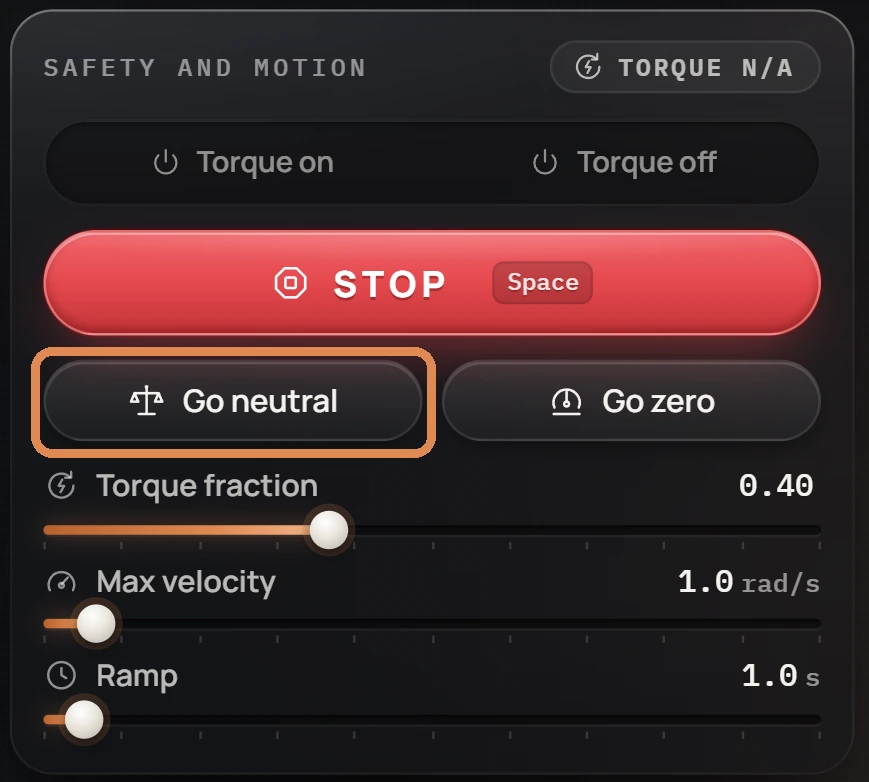
Torque fraction at 0.40 and Max velocity at 1.0 rad/s, then Go neutral. 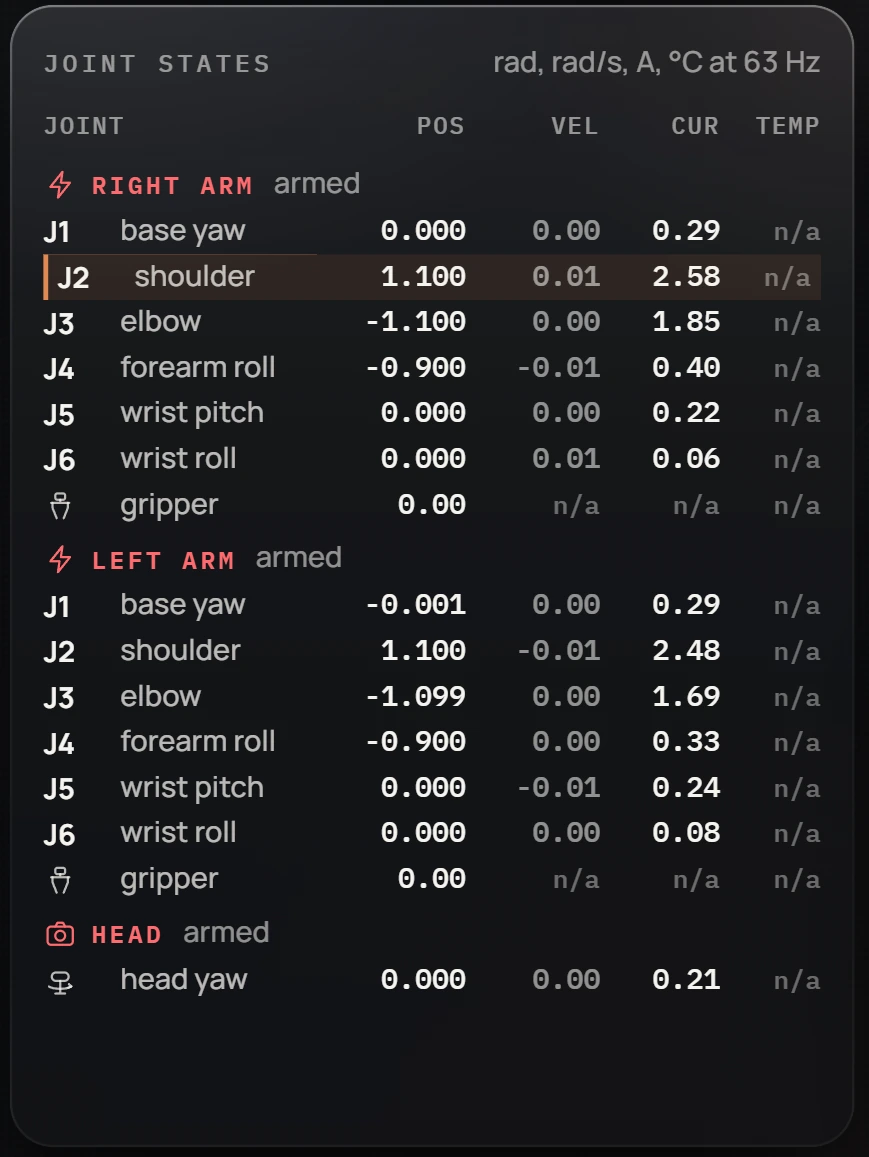
It worked: both arms hold the same pose, side by side, and every velocity reads about 0.00. Finish. Flip ARM off (the arms keep holding their pose) and press Exit to end the session.
Drive from the cockpit shows every panel of the cockpit, from jogging one joint to the cameras, and Find and connect to a robot explains each step of the session start.
Choose the head camera mode
The two head cameras stream in one of two modes. The Robot Console, the VR app and the Python SDK all start in full resolution.
| Mode | What the head cameras send |
|---|---|
| Full res (the default) | Each camera's whole picture, 2304 x 1296 at 56 frames per second. A fovea, where an app shows one, is a crop your PC takes from the full picture where you look. |
| Foveated | For a much lower bitrate without losing detail where you look. Each camera sends two pictures: a context picture of its whole view at 1152 x 648 (half the full picture's detail each way), and a fovea, a 640 x 640 window (320 x 320 with eye tracking) that the robot crops at your gaze from the full 2304 x 1296 picture, so it keeps full resolution detail. It starts at 6000 kbit/s for the context and 2000 kbit/s for the fovea per camera, as much as full res; turn the context rate down in Camera settings and the view around you gets softer while what you look at stays sharp. A picture that a lost packet damages takes up to about 10 s to be whole again, against a few frames in full res. |
You switch the mode during a session, and the head streams restart in the new mode:
- In the cockpit, click the rate in the header of the Cameras card (it reads full res, then the rate per camera) to open Camera settings, then choose full res or foveated under Head video.
- In the VR app, choose FULL RES or FOVEATED under HEAD VIDEO in the app's console. The app keeps your choice for the next session.
- In Python,
Robot.connect("acme-robot-02", video_layout="head")starts in the foveated mode, androbot.control.set_video_layout("full")goes back to full resolution. See what the robot sees has the details.
Over your network or over the internet
Every session starts with your MAKIINA account: the robot and your PC both need the internet for that moment, while MAKIINA Cloud checks who you are and lets the session in. Video and control are peer to peer.
When your PC and the robot are on the same network, control and video go directly between them on that network. From anywhere else they go over the internet, directly when the two routers allow it and through MAKIINA Cloud's relay when they do not, for example when the robot and the operator are on different 4G networks in two different countries. The top bar of the cockpit shows which path the session took and its ping.
Do the same from Python
Close the console's session if it is still open (Exit in the cockpit): a robot takes one session at a time.
Sign in once on the PC, in a terminal in the kit folder. On Windows, open the kit folder in File Explorer, click its address bar, type
powershelland press Enter: a PowerShell window opens in that folder. The command asks for your password (nothing shows while you type it), and for your two step code if you use one, and keeps a token on the PC (never the password):.venv\Scripts\python.exe -m makiina.cloud.makiina_cli login you@example.com # Windows .venv/bin/python -m makiina.cloud.makiina_cli login you@example.com # LinuxRun the first session example that comes with the kit, in the same terminal. With more than one robot in your account, add the robot's name at the end, for example
acme-robot-02:.venv\Scripts\python.exe examples\robot_getting_started.py # Windows .venv/bin/python examples/robot_getting_started.py # LinuxIt opens a session, prints the path and the head camera mode, waits for the cameras, reads the joints, sets safe limits and ends the session. It never moves the robot. A good run includes these lines:
session live: path lan, peer 192.168.1.42:8766, ping 2.1 ms
head camera mode: full
  camera stereo_cam_left: 2304x1296
  camera stereo_cam_left_fovea: 640x640
limits set: torque fraction 0.3, max joint velocity 0.5 rad/s
session ended
The path is
lanon the same network,p2pacross the internet andrelaythrough MAKIINA Cloud's relay.Open a session in your own script by the robot's name:
from makiina.robot import Robot

robot = Robot.connect("acme-robot-02")    # your robot's name
print(robot.sensors.get_joints())
robot.disconnect()
Connect from Python and Move joints safely go on from here.
Use the VR app
The MAKIINA VR app for Meta Quest downloads from your account, like the SDK kit. It is not in the Meta Horizon Store, so it goes on the headset from its file.
- Get the app. On the SDK page of your account, under Download the VR app, press GET DOWNLOAD LINK, then DOWNLOAD NOW. The link to the APK file works for 24 hours.
- Turn on developer mode for the headset, once. Meta shows the switch only to a Meta account that belongs to a developer team and is verified: on the Meta Horizon Developer Dashboard, create a team (or join one), then verify the account with a mobile number or a payment method. Then, in the Meta Horizon app on your phone, open Devices, Headset settings, Developer mode.
- Install it. Connect the headset to your PC with a USB C cable and accept Allow USB debugging inside the headset. Install the file with Meta Quest Developer Hub (drag it onto the headset's Apps panel), or run
adb install -r <file>. - Open it in the headset: App Library, Unknown Sources, MAKIINA Teleop.
- Sign in with the same account. To sign in with a code instead, the app shows an 8 letter code: open
cloud.makiina.com/account/deviceon your phone, sign in, type the code, press CONTINUE, then APPROVE. The app continues on its own within a few seconds.
If an install stops with a signature error, remove the old copy first: adb uninstall com.MAKIINA.MAKIINATeleop.
Who may connect
Owners, admins and operators of the robot's organization open sessions. Viewers see the robot and its state but cannot connect. When a session was left open, for example because a PC went away without disconnecting, an admin ends it with End session on the robot's row in the fleet list, or END SESSION on the account console's Robots page.
Manage the robot from the same console
The menu next to the robot's name in the cockpit's top bar lists the robot's pages: Control and Tuning for driving, Calibrate, Cameras and Firmware for maintenance, and Software, SSH access and Cloud for managing the robot. Driving works from anywhere. Software, SSH access, the maintenance pages and the device code on Cloud work on the robot itself over your local network, so they need your PC on the robot's network; owners and admins get in with their account. The robot leaves the factory calibrated, so you need Calibrate and Cameras only after a part was replaced or a camera moved.
Go on from here
- Add your SSH keysSign in to both computers of the robot with your own key.
- Update the robot softwareInstall a signed release file from the Robot Console.
- Drive from the cockpitEvery panel of the Control page, from jogging one joint to the cameras.
- Troubleshoot the dual arm systemWhat to do when a step does not work.